
QuickBooks Bank Feed Troubleshooting: Error Codes, Fixes, and When to Use Manual Upload


Bank feeds are the single largest source of QuickBooks support tickets. Connections drop when banks push security updates, when aggregator APIs fail, when multi-factor prompts change, or when a session expires.
The fixes are systematic once the error code is identified. This guide covers the eight most common bank feed errors in QuickBooks Online and QuickBooks Desktop, the resolution path for each, and the case for manual CSV or QBO upload when the live feed cannot be restored.
Why do QuickBooks bank feeds break?
QuickBooks bank feeds break for six recurring reasons. Understanding the category narrows the fix from hours to minutes.
Bank-side changes account for the majority of feed failures. When a bank updates its login flow, requires new multi-factor authentication, or migrates online-banking infrastructure, the aggregator connection breaks until re-consent is granted. Chase, Wells Fargo, Bank of America, and Capital One all push these changes multiple times per year.
Expired credentials trigger errors when a user changes their bank password without updating QuickBooks. The stored login stops working on the next scheduled sync. QuickBooks does not detect the mismatch proactively.
Aggregator API failures happen upstream of QuickBooks. Intuit uses Finicity (Mastercard-owned) as the primary aggregator and Plaid as a secondary. When either aggregator has a partial outage, feeds fail for a subset of banks with no error surfaced to the user.
Session expiration in QuickBooks Desktop generates OL-200 series errors when the previous Direct Connect session did not close cleanly. The fix requires deactivating and re-adding the bank account.
Consent expiration under Open Banking rules requires periodic re-authentication. Most US banks now require re-consent every 90 days. QuickBooks Online surfaces Error 324 or Error 350 when consent lapses.
Duplicate connections happen when the same account is added twice, most often after an error-driven disconnect and reconnect. QBO then imports the same transaction from both feeds, doubling every entry until the duplicate connection is removed.
What are the most common QuickBooks bank feed error codes?
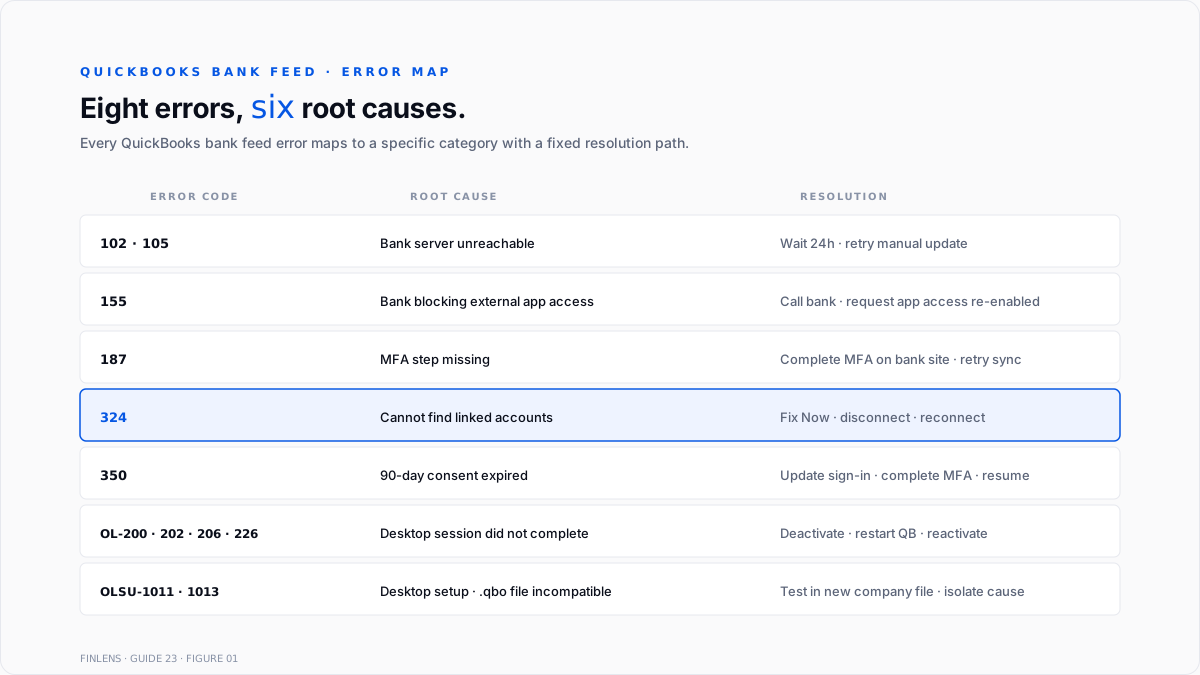
Eight error codes cover approximately 90% of bank feed problems in 2026. Each maps to a specific cause and resolution path documented by Intuit's error reference.
Error 102 and Error 105. QuickBooks cannot reach the bank's server. The bank is down or performing maintenance. Wait 24 hours, then retry the manual update. No user action beyond patience.
Error 155. The bank is actively blocking the QuickBooks connection. Resolution requires calling the bank and requesting that external application access be re-enabled on the account. Common at credit unions and community banks after security policy updates.
Error 187. The multi-factor authentication step is missing. QuickBooks needs an additional verification code the bank has not delivered. Log in to the bank's website directly, complete any pending security prompts, then retry the update in QuickBooks.
Error 324. QuickBooks cannot find the linked bank accounts. This happens when the bank closes an account, changes an account number, or migrates to a new platform. Resolution: Fix now on the affected account, disconnect, and reconnect using current account details (Intuit's Error 324 fix).
Error 350. The bank connection has expired and requires re-authentication. This is the standard 90-day consent expiration under Open Banking rules. Update sign-in info in QuickBooks, complete the bank's MFA challenge, then resume normal syncing.
Error OL-200, OL-202, OL-206, or OL-226. QuickBooks Desktop's last online session did not complete cleanly. Resolution: deactivate bank feeds on the affected account, close and reopen QuickBooks Desktop, then reactivate the account and complete a fresh sync (Intuit's OL/OLSU fix guide).
Error OLSU-1011 and OLSU-1013. Setup errors in QuickBooks Desktop are preventing new bank connections. The .qbo file downloaded from the bank is incompatible with the current QuickBooks version. Resolution: run a test import in a new company file to isolate whether the issue is bank-side or file-side.
System exception errors. A QuickBooks Desktop error surfaced during bank feed setup. Fix requires switching to Classic Mode (Register Mode) in Company Preferences before retrying the connection.
How to fix bank feed errors in QuickBooks Online
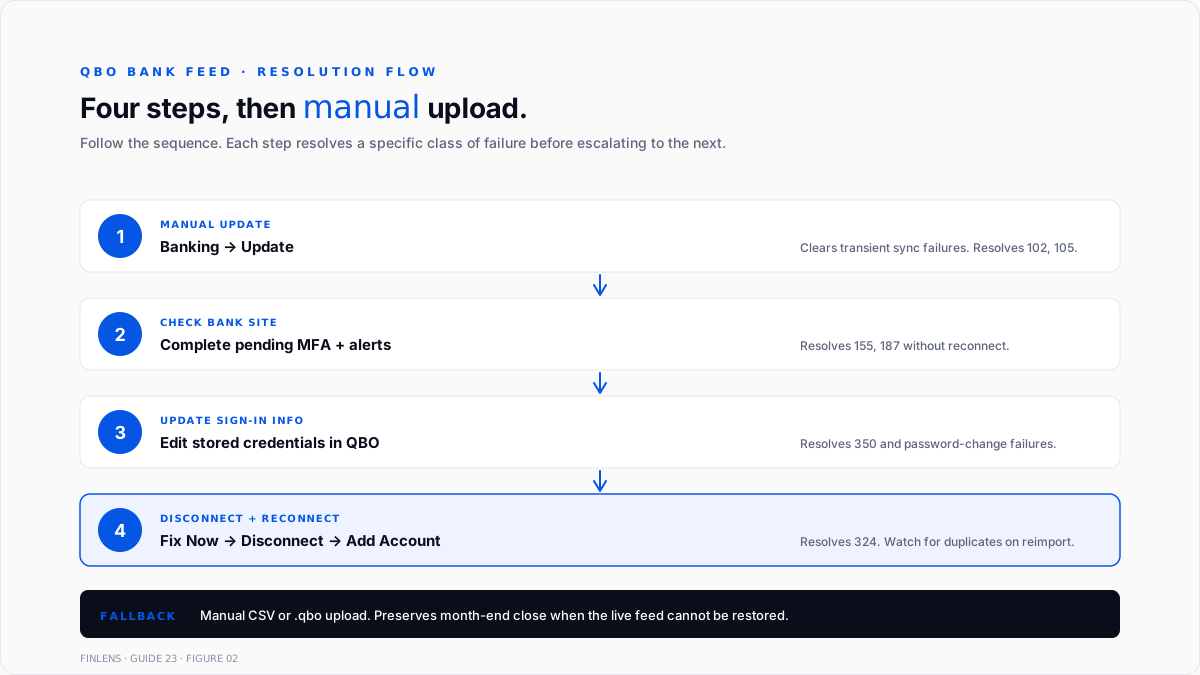
The QBO resolution sequence runs in four ordered steps. Following them out of order wastes time or creates duplicate transactions.
Step 1: Start a manual update. From the Banking tab, select Update. Most banks refresh with QuickBooks every 24 hours automatically. A manual update forces an immediate refresh and often clears transient connection failures without further action.
Step 2: Check the bank's website. Log in to the bank directly. Complete any pending security prompts, resolve any account alerts, and confirm the account is active. If a password reset is required, complete it before returning to QuickBooks.
Step 3: Update sign-in info. If the bank password changed, update it in QuickBooks. Navigate to the affected account, select Edit sign-in info, and enter the current credentials. The next sync should succeed.
Step 4: Disconnect and reconnect. If updates and credential fixes fail, disconnect the account. Edit the account, select "Disconnect this account on save," then re-add the account using the Add Account flow. New connections pull the last 90 days of transactions.
Duplicate transactions are the primary risk of Step 4. Any transactions already imported and categorized will re-appear on reconnect. Exclude the duplicates in the For Review tab before accepting.
How to fix bank feed errors in QuickBooks Desktop
QuickBooks Desktop uses Direct Connect (OFX) or Web Connect (.qbo file download). The troubleshooting path differs by connection type and by error code.
Direct Connect OL-200 series errors. Deactivate the bank feed on the affected account. Close and restart QuickBooks Desktop. Reactivate the account. Run a full sync. This resolves the majority of OL-200, OL-202, OL-206, and OL-226 errors.
Direct Connect setup errors (OLSU-1011, OLSU-1013). Create a new test company file. Attempt the bank connection in the test file. If the connection succeeds in the test file, the original company file has a data-integrity issue and needs a rebuild. If the connection fails in both, the issue is with the bank's OFX service.
Web Connect errors. Download a fresh .qbo file directly from the bank's website. Import via File, then Utilities, then Import, then Web Connect Files. If the import fails, confirm the .qbo file matches the QuickBooks year version.
System exception errors. Switch to Classic Mode. In QuickBooks Desktop, go to Edit, then Preferences, then Checking, then Company Preferences. Select Classic Mode (Register Mode). Retry the bank feed setup.
Desktop bank feeds are on the Intuit sunset timeline. QuickBooks Desktop Pro and Premier are no longer sold to new customers as of September 30, 2024. Desktop 2023 support ends May 31, 2026. Desktop 2024 support ends September 2027. Firms still on Desktop should plan the migration path even while troubleshooting current bank feed issues.
What if the bank feed pulls duplicate transactions?
Duplicate transactions are the most common downstream problem after a reconnection. Three patterns generate duplicates.
Pattern 1: Reconnect duplicates. After disconnecting and reconnecting an account, QuickBooks re-imports the last 90 days. Any transactions already accepted from the previous feed reappear in For Review.
The fix: filter For review by date range covering the reconnect period. Match each transaction against existing register entries. Use the Exclude action for confirmed duplicates. Never accept an unmatched duplicate into the register.
Pattern 2: Dual-feed duplicates. When both an aggregator feed (Finicity/Plaid via QBO) and a Direct Connect feed are active on the same account, every transaction imports twice.
The fix: disconnect one feed. QBO users should keep the aggregator feed. Desktop users typically keep Direct Connect. Delete the duplicate entries already in the register before disabling the second feed.
Pattern 3: Merchant vs. bank fee duplicates. When Stripe, Square, or another payment processor is connected in addition to the bank, each deposit imports twice: once as a gross Stripe payout and once as a net bank deposit.
The fix: route processor transactions through a clearing account, then reconcile the bank deposit against the clearing account rather than the customer invoice. The workflow is documented in Finlens' Stripe + QuickBooks sync guide.
What if the bank feed is missing transactions?
Missing transactions have four common causes. Each requires a different fix.
Cause 1: Older than 90 days. New QuickBooks bank connections pull only the last 90 days of transactions on first sync. Anything older must be manually imported via CSV or QBO file.
Cause 2: Pending transactions. QuickBooks bank feeds import only posted transactions. Pending transactions do not appear until the bank posts them, typically one to three business days after authorization.
Cause 3: Excluded transactions. Transactions previously excluded from For Review do not re-import. Check the Excluded tab under Banking to confirm whether the missing transactions were excluded rather than lost.
Cause 4: Filter or search limits. The For Review tab has date filters and category filters that hide transactions. Reset all filters before concluding transactions are missing.
If a transaction is confirmed missing after all four checks, download a CSV or QBO file from the bank covering the missing date range and upload directly. QBO accepts CSV, QBO, QFX, and OFX file formats.
When is manual CSV or QBO upload the right answer?
Manual upload is the correct workflow in five scenarios. Firms that resist manual upload as a "step backward" often lose more time to failed reconnects than they would to a direct file import.
- Historical import. Transactions older than 90 days on a new bank connection require CSV or QBO file upload.
- Extended feed outage. When a bank feed has been broken for more than a week and Intuit support has no ETA, manual upload preserves month-end close timing.
- The bank blocks external app access. Error 155 and similar bank-side blocks may not resolve for weeks. Manual upload is the practical workaround.
- Discontinued Direct Connect service. Some banks are winding down OFX Direct Connect support entirely. The manual .qbo file download remains available in most cases.
- Sensitive accounts. Firms sometimes exclude high-risk accounts (partner draws, tax escrow) from live feeds and upload them monthly for audit control.
The manual upload path in QBO is Banking, then Upload transactions, then select the file. Match the file's account to the correct QBO bank account. Review and accept.
The manual upload path is Desktop: File, then Utilities, then Import, then Web Connect Files. Select the .qbo file. Confirm the account.
What are the most common bank feed mistakes that create month-end problems?
Five mistakes surface repeatedly in bank feed cleanup engagements.
Accepting transactions without matching to existing register entries. The For Review tab suggests categorization but does not automatically match against manually entered checks, deposits, or bill payments. Accepting without matching creates duplicate transactions that surface at reconciliation.
Categorizing to the wrong accounts on autopilot. QuickBooks's suggested category is based on prior patterns. When a vendor's charge type changes (a subscription becomes a hardware purchase), the auto-suggestion still points at the old category. A manual review of every For Review transaction is required, especially at month-end.
Ignoring the Excluded tab. Transactions excluded during a prior cleanup do not reappear unless the exclusion is reversed. Firms that exclude and forget end up with missing transactions at year-end that reconcile to nothing.
Never reconnecting after a bank change. When a bank migrates infrastructure, the feed silently drops. Firms that do not monitor sync status discover the outage weeks later, at which point manual reconstruction of the missing period is required.
No process for duplicate detection after reconnecting. Every disconnect-reconnect cycle risks duplicate transactions. Firms without a defined duplicate check post-reconnect end up with inflated revenue or expense totals on the P&L until reconciliation catches the variance.
The cleanest defense is a monthly bank feed audit: Confirm the last sync date, spot-check three random transactions against the bank statement, and review any excluded or for-review items older than 30 days. Full monthly reconciliation is covered in Finlens' bank reconciliation guide.
Conclusion
Finlens is a QuickBooks-compatible AI accounting platform that sits alongside QBO and resolves the categorization, matching, and variance-detection work that bank feed problems create downstream. When a bank feed drops or produces duplicates, the general ledger takes the damage. Finlens catches it before month-end close.
Finlens monitors sync status across every connected bank feed and flags outages the same day they happen. Duplicate detection runs continuously, matching each new For Review transaction against existing register entries by amount, date, and vendor. Duplicates surface with a suggested Exclude action before the user accepts them into the register.
For firms with high transaction volume across multiple bank accounts, Finlens automates the bulk categorization work that manual bank feed review demands. The system learns from historical categorization patterns and flags exceptions where auto-categorization confidence is low. That workflow is documented in Finlens' historical transaction categorization tools guide and best AI tools to bulk categorize transactions.
For CPA firms managing many QBO clients, Finlens's multi-entity view surfaces bank feed problems across every client from a single dashboard. Outages, duplicates, and month-old For review backlogs, all flags are automatically sent, so the firm can intervene before the client's close date rather than during audit prep. That workflow is documented in Finlens' bank reconciliation automation guide.
.png)
FAQ
Is something wrong with QuickBooks bank feeds right now?
Intuit maintains a bank feed status page at status.quickbooks.intuit.com showing current outages by service. Aggregator issues affecting multiple banks post there first. For single-bank issues, checking the bank's own status page and Reddit's r/QuickBooks is often faster than opening a support ticket.
How do I refresh a bank feed connection in QuickBooks?
In QBO: Banking, then Update. In Desktop: Banking, then Bank Feeds, then Bank Feeds Center, then Send/Receive. Manual refresh clears most transient sync failures. If the refresh fails, move to credential update or full disconnect-reconnect.
What are the three possible causes of QBO not suggesting a match in the bank feed?
First, the register entry has a different amount than the imported transaction (including cents). Second, the register entry was posted more than 180 days from the bank transaction date, outside the default match window. Third, the register entry is already matched to a different transaction and cannot be matched twice.
How can duplicate bank feed transactions be identified in QuickBooks?
Sort the For Review tab by amount and date. Any transaction with the same amount and date as an existing register entry is likely a duplicate. Match the two before accepting. Automated duplicate detection is faster at scale. Finlens flags duplicates continuously across all connected feeds.
What is the difference between Direct Connect and Web Connect in QuickBooks Desktop?
Direct Connect is a live OFX connection that syncs automatically. It requires bank enrollment and often carries a monthly fee. Web Connect is a manual. QBO file download from the bank's website, imported into QuickBooks on demand. Web Connect is free but requires user action for each import.
Can bank feed history be pulled back further than 90 days?
Not through the automatic feed. QBO's initial connection retrieves only the last 90 days. Older transactions require manual CSV, QBO, QFX, or OFX file upload. Most banks provide up to 24 months of transaction history for direct download.
How can bank feed connections be prevented from breaking?
Update stored credentials in QuickBooks immediately after any bank password change. Complete any pending MFA challenges on the bank's website before triggering a QuickBooks sync. Monitor sync status weekly. Re-authenticate every 90 days to prevent Error 350 consent expirations.
Should the same bank account be connected via aggregator and Direct Connect at the same time?
No. Running both feeds simultaneously on the same account causes duplicate transactions. Choose one connection method per account. QBO users default to the aggregator connection. Desktop users typically use Direct Connect if the bank supports it.

