
The QuickBooks Online Accountant guide for CPA firm partners (2026)


This is a working reference for CPA firm owners, partners, and senior bookkeepers running client engagements on QuickBooks Online. Every technique and access pattern is sourced to Intuit's own documentation or a real thread on the QuickBooks Community. Screen paths reference the current QBOA UI as of 2026.
The problem this guide addresses
Two operational failures drive most QuickBooks Online Accountant (QBOA) friction on firms scaling past their first ten clients.
The first is fragmented access. Team members get invited as full-access users on each client instead of through the firm's central QBOA team management, so when a bookkeeper leaves, the firm has to log into every client file to revoke access. The Community thread on team-member access to clients but not firm financials documents the pattern.
The second is books-review inconsistency. Every partner runs a different close checklist, uses different accountant tools, and marks completion at different points. Two partners closing the same client in different months produce different books-review states, so the year-end tax prep pass has to redo work that should have been settled monthly. Intuit's Bookkeeping tab documentation is the reference for the standard three-status workflow.
The sections below cover what QBOA actually is, the free-vs-paid boundary, firm setup, team-member and client-access architecture, the Accountant Toolbox, the monthly Books Review workflow, Prep for Taxes for year-end tax hand-off, ProAdvisor benefits, and where the standard QBOA workflow stops scaling for firms managing 30+ clients.
.svg)
What QBOA actually is
QBOA is Intuit's free web portal built specifically for accounting firms and bookkeepers who serve clients on QuickBooks Online. It is not a version of QBO - it is a workspace above QBO from which the firm accesses every client's QBO file through one login, manages the firm's team members, tracks work in progress, and runs the accountant-specific tools that don't exist in standard QBO.
Every firm signs up free at quickbooks.intuit.com/accountants. No monthly subscription for QBOA itself. Firms pay only for the QBO subscription on each client file (or that fee gets billed to the client). QBOA includes access to Intuit's ProAdvisor Program at no additional cost - free QBO Advanced for the firm's own books, discounted QBO subscriptions the firm can pass through to clients, QuickBooks Workforce Elite for the firm's payroll, and the Find-a-ProAdvisor directory listing once certified.
The distinction from vanilla QBO: a bookkeeper who logs into QBOA sees the firm's client list and can enter any client file directly. A client who logs into their own QBO Advanced subscription sees only their own company file. QBOA is the multi-tenant firm view; QBO is the single-tenant client view.
Firm setup - the first 30 minutes
Six setup steps make QBOA workable from day one:
1. Sign up the firm. The owner-partner creates the QBOA account. This account becomes the Master Admin - the only role that can add or remove team members with full firm access.
2. Add the firm's own books. The firm gets one QBO Advanced subscription free through ProAdvisor. Set this up as the firm's internal books before adding client files.
3. Configure the firm profile. Firm name, address, business type, and ProAdvisor certification badges (once earned). This profile drives the Find-a-ProAdvisor directory listing.
4. Add the first client. Two ways: invite an existing client's QBO file into the firm (the client sends a firm invite from their side, and the firm accepts), or create a new client from scratch through QBOA (which sets up their QBO subscription under the firm's wholesale billing or direct billing).
5. Add team members. Each staff bookkeeper, senior, and partner. Roles configured per person - more on this below.
6. Configure firm-wide preferences. Books review default checklist, notification preferences, default report date ranges, and firm-level branding on client-facing communications.
Team members and client access - the two-layer permission model
Access in QBOA is split across two independent layers. Intuit's help article on adding and managing an accounting team covers the mechanics.
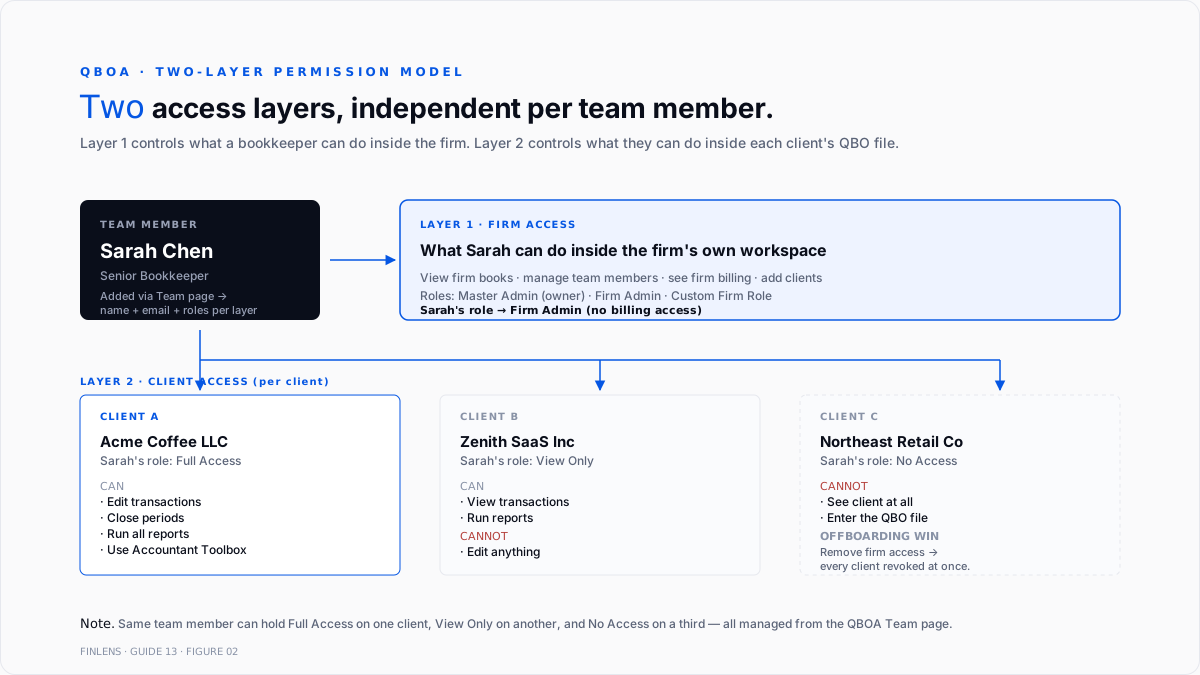
Layer 1 - Firm access
Firm access controls what a team member can do inside the firm's own workspace: view firm books, edit firm expenses, manage other team members, see billing, and add or remove clients.
Roles at this layer include Master Admin (owner-partner, one per firm), Firm Admin (can manage team members but not billing), and various Custom Firm Roles that the Master Admin defines. Intuit's custom firm roles documentation covers granular View/Create/Edit/Delete permissions per feature area (Sales, Expense, Inventory, Payroll, Reports).
Layer 2 - Client access
Client access controls what a team member can do inside each specific client's QBO file: view transactions, edit them, run reports, close periods, and delete records.
Roles at this layer are assigned per client - a bookkeeper can be Full Access on Client A, View Only on Client B, and No Access on Client C. The same team member has three different access levels, all managed from the QBOA team page.
Standard client-access roles: Full Access, Standard Access, Basic Access, and Custom. The Custom option opens the same granular View / Create / Edit / Delete controls per feature area.
The two-layer model matters for offboarding. When a bookkeeper leaves the firm, removing them at the firm layer automatically revokes every client access without the firm having to log into each client file. This is the primary operational win of QBOA over adding accountants directly to individual client QBO files.
The Accountant Toolbox
Once inside a client file (via QBOA's Client Selector at the top of the screen), the Accountant Toolbox appears in the top bar with tools that don't exist in standard QBO. Intuit's Accountant Tools help article covers each.
Prep for Taxes. Trial-balance-style review of the entire client file with the ability to make adjusting journal entries in bulk, map accounts to tax-form lines, and export directly to ProConnect Tax Online (or CSV for other tax software). The primary year-end tax hand-off tool.
Reclassify Transactions. Batch-edit or batch-move transactions across accounts, classes, and locations. Used most often to correct systematic miscategorizations found during Books Review.
ProConnect Tax Online. Intuit's cloud tax-prep product. Direct integration from QBOA - accountant tools launch a return pre-populated with the client's mapped accounts.
Write Off Invoices. Batch write-off of stale A/R. Complements the manual credit-memo workflow for bad debt covered in the accounts receivable, invoicing, and collections guide.
Reconcile. Reset a reconciliation and start over from a clean beginning-balance state. Companion to the standard bank rec covered in the bank reconciliation guide.
Reporting Options. Set default date ranges, filters, and comparison periods that apply firm-wide to every report a team member runs on that client.
Voided/Deleted Transactions report. Forensic report showing every voided or deleted transaction with the timestamp and the team member who made the change.
Chart of Accounts batch-edit and Products & Services batch-edit. Standard QBO restricts these to single-row edits; the Accountant Toolbox opens bulk edit.
The monthly Books Review workflow
The Bookkeeping tab (formerly Books Review) is the firm's per-client monthly close tracker. Every client file rolls up into the firm's dashboard with a status badge per month across three phases.
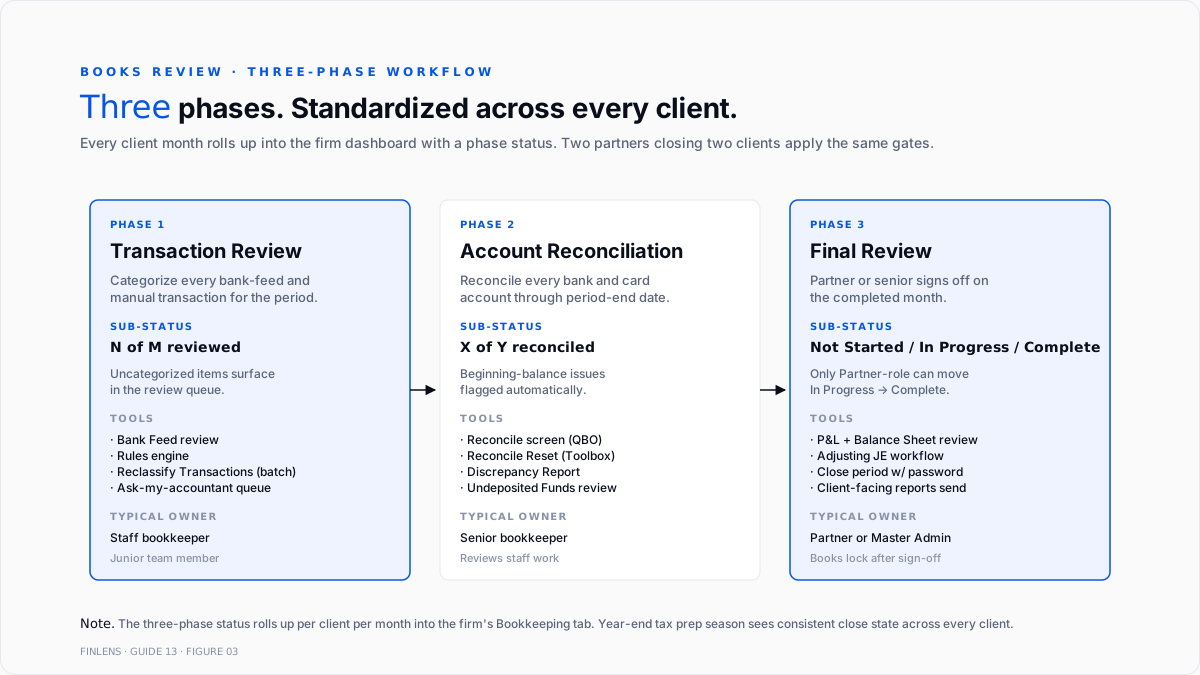
Phase 1 - Transaction Review. Every bank feed and manual transaction is categorized. Uncategorized items surface in the Transaction Review queue. The full workflow is covered in the historical transaction categorization tools for QuickBooks write-up. Sub-status: N of M transactions reviewed.
Phase 2 - Account Reconciliation. Every bank and credit card account was reconciled through the period-end date. Sub-status: X of Y accounts reconciled, with any beginning-balance discrepancies flagged.
Phase 3 - Final Review. The partner or senior signs off on the completed month. Sub-status: Not Started / In Progress / Complete. Firms typically require Master Admin or Partner-role team members to move a month from In Progress to Complete.
The three-phase model matters because it standardizes what "done for the month" means across the firm. Two partners closing two clients in April both apply the same phase gates, so the year-end pass in Q1 sees consistent close status per client per month.
Prep for Taxes - the year-end hand-off
Prep for Taxes is the QBOA tool that converts a QBO trial balance into tax-form-ready output. Intuit's Prep for Taxes documentation covers the workflow.
The five-step year-end flow inside Prep for Taxes:
1. Review the trial balance. All QBO accounts are listed with debit/credit balances at year-end. Zero-balance accounts hidden by default.
2. Post adjusting journal entries. Depreciation, accruals, tax provisions, and prior-period adjustments. Every JE posts to the client's QBO file and flows through to the trial balance.
3. Map accounts to tax-form lines. Every account gets assigned to a specific line on the client's tax return (Form 1120, 1120-S, 1065, 1040 Schedule C). Intuit's default mapping applies where standard; firms override for unusual accounts.
4. Export to ProConnect Tax Online. Direct integration launches the return pre-populated with mapped balances. Alternate export as CSV feeds any external tax software.
5. Lock the tax year. Once the return is filed, the client's QBO period is closed with a password, preventing further edits. Any subsequent adjustment requires reopening the period through the accountant's tools.
Prep for Taxes eliminates the manual trial-balance-to-tax-form transcription that plagues firms not on QBOA - a step that historically consumed hours per client at year-end.
ProAdvisor benefits - what the free program includes
QBOA membership auto-enrolls the firm in Intuit's ProAdvisor Program. Benefits stack:
Free software for the firm's own use. QBO Advanced for the firm's internal books, QuickBooks Workforce Elite for the firm's payroll, QBOA itself.
Wholesale billing. Firms can bill client QBO subscriptions through the firm's account at wholesale pricing (a 30% discount off retail is typical) and mark up or absorb the difference.
ProAdvisor certification. Free training and certification exams for QBO Certified, QBO Advanced Certified, and Enterprise Certified. Certified partners appear in the Find-a-ProAdvisor directory.
Priority Care. Faster Intuit support routing for certified ProAdvisors versus standard customer support.
Discounts on adjacent Intuit products. ProConnect Tax, Lacerte, TSheets/QB Time, Mailchimp, and rotating third-party partners.
Points-based ProAdvisor tier system. Silver / Gold / Platinum / Elite tiers unlock additional benefits based on certification count, client count, and revenue tracked through the firm.
Where QBOA stops scaling
Three failure modes compound at higher firm size.
Client count above ~30. The client list becomes unwieldy inside QBOA's native Bookkeeping tab. Filtering, sorting, and bulk-status changes stop being ergonomic. Firms above 30 clients typically layer a practice management tool (Karbon, Financial Cents, or Canopy) on top of QBOA to track work at a portfolio scale.
Books review status inconsistency. QBOA's three-phase model is a floor, not a ceiling. Firms with senior and junior team members often need sub-checklists per client type (SaaS client vs services client vs ecommerce client) that QBOA's shared checklist doesn't support natively.
Cross-client analytics. QBOA reports one client at a time. Firm-level rollups (average close time across all clients, categorization accuracy trend, and exception rate per bookkeeper) require exports to a spreadsheet or a dedicated firm analytics layer.
At those thresholds, the fix is not more QBOA discipline - it is a tooling layer on top of QBOA that automates the pieces QBOA doesn't handle at scale.
The Finlens approach
Finlens is an AI accounting platform for QBO firms. QBOA is the client-access substrate - Finlens sits on top of it. For a firm managing multiple QBO clients through QBOA, Finlens does the following:
- Aggregates the Books Review status across every client into one firm dashboard, so a partner sees which of 40 clients are ready for Final Review at a glance instead of paging through the QBOA client list.
- Automates Phase 1 (Transaction Review) with AI categorization at confidence scores, so junior bookkeepers spend their time on the ~15% of low-confidence transactions instead of reviewing every line by hand.
- Standardizes the close checklist per client type so a SaaS client and an e-commerce client both close correctly without every partner rewriting the checklist.
The features that keep firm operations accurate - rather than just automated - are the ones surrounding QBOA itself:
- Single sign-on across every client file without re-authenticating per client, matching the QBOA multi-client mental model but faster at scale.
- Human-in-the-loop review gates every AI proposal through the assigned team member before it posts to a client's file.
- Audit log aggregates every change across every client on the firm's book, with the team member, timestamp, and QBO account referenced.
- Multi-client prep for taxes rollup so year-end tax hand-off runs across every client in one workflow.
For a firm scaling client count past the 30-client threshold, the firm platform layers on top of QBOA to handle the analytics and workflow that QBOA leaves out. Book a 20-minute walkthrough against a live QBOA firm environment: cal.com/finlens/intro.
The verification checklist
- Every team member has a role at both the firm layer and each assigned client.
- No client file has a bookkeeper added directly (bypassing QBOA team management) - this creates a hidden offboarding risk.
- Books Review: The three-phase status is up to date for every active client for every closed month.
- Prep for taxes mapping is confirmed for every client before year-end filing season.
- Voided/Deleted Transactions report reviewed monthly at the firm level for suspicious edits.
- Every client's Master Admin (client-side) is documented in the firm's client-info sheet.
- ProAdvisor certification status is current for every partner and senior team member.
- The firm's own QBO Advanced (free through ProAdvisor) is closed monthly on the same cadence expected of clients.
For a firm managing books review, categorization, and prep for taxes across many QBO clients, the firm platform automates the cross-client workflow. For a controller running a single-company book, the founder-facing product handles the same categorization + close automation at company scale. Book a 20-minute walkthrough: cal.com/finlens/intro.
Conclusion
QBOA is the firm's front door to every QBO client. Free, multi-tenant, and tools-inclusive. The value shows up as the client count grows - one login for every client file, one team-management panel for every bookkeeper, one Books Review dashboard for every close, and one Prep for Taxes workflow for every tax return.
The failure mode is treating QBOA as a passive access portal instead of the firm's operating substrate. Firms that configure team roles, standardize the Books Review workflow, and use Prep for Taxes for every year-end move faster and produce more consistent client outcomes than firms that use QBOA only as a login shortcut.
.png)
FAQ
Does a QuickBooks Online accountant cost anything?
No. QBOA is free forever for accounting firms and bookkeepers. Firms pay only for the QBO subscription on each client (or that fee gets billed through the client). The firm's own internal books get QBO Advanced free through the ProAdvisor Program.
The difference between QBOA and QuickBooks Online Advanced?
QBOA is the firm-side portal - multi-client access, team management, Accountant Toolbox, and Books Review. QBO Advanced is a top-tier client-side subscription with features like batch invoicing, workflow automations, and custom user roles. A firm uses QBOA to access clients; a client uses QBO Advanced (or Plus, Essentials, or Simple Start) for their own books.
How to add a client's existing QBO file to QBOA?
Two paths. Path 1: the client sends a firm invite from their QBO account (Gear icon → Manage Users → Accountants → invite by email). Path 2: the firm creates a new QBO subscription for the client through QBOA's wholesale billing. Existing-file invitations are the more common path.
Does QBOA support desktop QuickBooks Enterprise clients?
Partially. QBOA is cloud-native and manages QBO files, not Enterprise Desktop files. For firms with mixed portfolios, enterprise clients require a separate access method (typically Intuit's remote-access tools or the client's hosted deployment). The QuickBooks Accountant Edition of Enterprise Desktop handles the enterprise-side workflow, separate from QBOA.
Do custom firm roles cost extra?
No. Custom firm roles and custom client-access roles are included in QBOA at no additional cost. Master Admin can create, edit, and delete custom roles at will.
Realistic time savings from QBOA vs. adding accountants directly?
Anecdotal: Firms report 5–15 minutes saved per client per month on access management and Books Review consolidation compared to adding accountants directly through client QBO files. At 30 clients, that's 2.5–7.5 hours per month reclaimed at the partner level - before adding any AI or automation layer above QBOA.

