
The QuickBooks Online Payroll guide: tier selection, setup, and first pay run (2026)


This is a working reference for founders running their first payroll on QuickBooks Online Payroll and firm bookkeepers onboarding a client into payroll. Every technique, tier detail, and setup step is sourced to Intuit's own documentation or a real thread on the QuickBooks Community. Pricing cited from third-party reviewers is flagged as external estimates and moves regularly.
The problem this guide addresses
Two decisions drive most first-time QuickBooks Online Payroll conversations.
The first is tier selection. Core, Premium, and Elite each carry different feature sets and different per-employee pricing. Buying Core for a book that needs same-day direct deposit or workers' comp admin means running standalone tools alongside payroll and losing the point of the integration. Buying Elite for a five-employee book with straight-time salaried employees means paying for QuickBooks Time and tax-penalty protection features that never get used. The paygration Core-vs-Premium-vs-Elite breakdown covers the feature deltas.
The second is setup completeness. A partial payroll setup runs the first pay period but fails on tax filings or state registration. Missing state tax IDs, wrong deposit frequencies, unmapped GL accounts, or a mis-signed principal-officer authorization all produce late-filing penalties that surface 30–90 days after the miss. Intuit's getting started with QuickBooks Online Payroll help article is the canonical setup reference - this guide covers what happens if any step is skipped.
The sections below cover the three tiers with 2026 pricing, the setup workflow, chart-of-accounts mapping, the first pay run verification, common failure modes, and where QBO Payroll stops scaling into more complex payroll operations. The other payroll cluster guides (payroll taxes, third-party payroll JEs, and W-2 year-end close) cover the operational cycles once setup is complete.
What QuickBooks Online Payroll actually is
QuickBooks Online Payroll is Intuit's in-house payroll product bundled with QBO. It calculates gross-to-net pay, deducts federal + state + local taxes, deducts benefits (401(k), HSA, FSA, insurance), files quarterly and annual payroll tax returns (941, 940, state), and issues W-2s at year-end. Direct deposit runs on the same platform.
Two distinctions matter. First, QBO Payroll is a monthly-subscription product separate from QBO itself - the accounting subscription and the payroll subscription are billed independently (with bundled discounts available). Second, QBO Payroll does not replace external payroll providers wholesale - firms with Gusto, Rippling, ADP, or Justworks already installed keep those and book the payroll into QBO via journal entry, covered separately in the Guide 13 · third-party payroll JE reference (once published).
QBO Payroll assumes the business runs payroll on standard schedules (weekly, biweekly, semi-monthly, and monthly) for W-2 employees. Contractors get paid through the Contractor Payments feature (separate from Payroll - 1099 workflow covered in the accounts payable, vendor bills, and 1099 filing guide). Equity compensation, restricted stock, and complex bonus structures live in supplementary payroll runs or Off-cycle payrolls inside the same product.
The three tiers with 2026 pricing
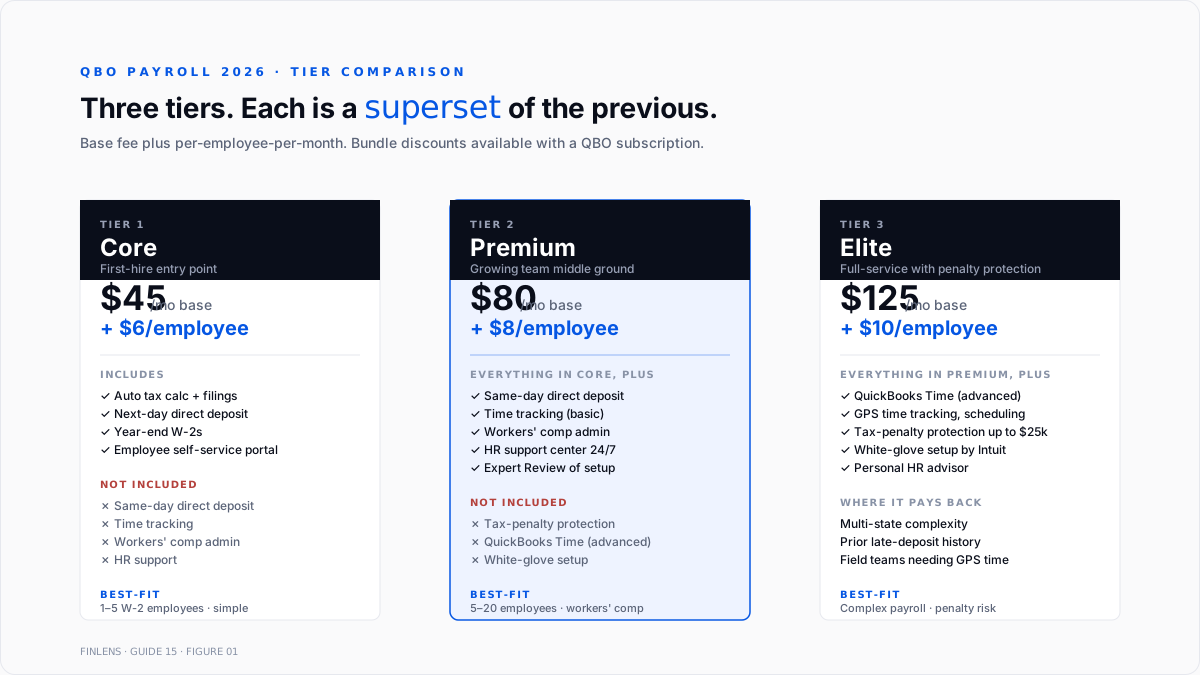
Rates from software finder and dancing numbers - verify against Intuit before purchase. Every tier is priced as a monthly base fee plus a per-employee-per-month add-on.
Core. $45/month + $6/employee/month.
- Full-service payroll: gross-to-net, federal + state + local tax withholding
- Automatic tax payments and filings (941, 940, state)
- Next-day direct deposit
- Year-end W-2 filing and print/mail
- Employee self-service portal (pay stubs, W-2 access)
- No workers' comp administration
- No time tracking beyond basic entry
Premium. $80/month + $8/employee/month. Adds to Core:
- Same-day direct deposit (Core is next-day)
- Time tracking (basic)
- Workers' compensation administration through AP Intego
- HR support center (24/7 phone access, HR advisor consultations)
- Expert Review of the initial payroll setup (Intuit specialist reviews the configuration before the first run)
Elite. $125/month + $10/employee/month. Adds to Premium:
- QuickBooks Time integration at full functionality (mobile time tracking, GPS, scheduling)
- Tax-penalty protection (Intuit covers up to $25,000 in penalties if their tax calculation or filing is wrong)
- White-glove setup (Intuit runs the full initial setup workflow)
- Personal HR advisor (dedicated contact vs generic help)
Bundled pricing with QBO Simple Start, Essentials, Plus, or Advanced is available with variable discounts - typically 30–50% off the standalone rates. Firms buying QBO + Payroll together should check the bundled price rather than summing standalone.
For a first-hire founder without complex payroll, Core is the right entry point. For a business with 10+ employees, workers' comp needs, or growth expectations, premium is the pragmatic middle. Elite pays back only when tax-penalty protection or QuickBooks Time (advanced) is genuinely needed.
The chart-of-accounts setup
Six chart-of-accounts entries carry the payroll cycle. The full close-cycle setup sits in the QuickBooks month-end and year-end close guide.
- Wage Expense (Expense, detail type: Payroll Expenses). Gross wage cost for the pay period. Best practice: sub-accounts per department (Wages - Engineering, Wages - Sales, Wages - G&A) so the P&L reads by function.
- Payroll Tax Expense (Expense, detail type: Payroll Tax Expense). Employer share of FICA (Social Security + Medicare), FUTA (federal unemployment), and SUTA (state unemployment). Also, the employer shares any local taxes.
- Payroll Liabilities (Other Current Liability). Umbrella. Sub-accounts per liability type: Federal Withholding (941), State Withholding, FICA Payable, FUTA Payable, SUTA Payable, 401(k) Employee Deferral, 401(k) Employer Match, HSA/FSA Deductions, and Health Insurance Deductions.
- Wages Payable (Other Current Liability). For pay period accruals when the pay period spans month-end. Full treatment in the prepaid expenses and accrued expenses guide.
- Employee Benefits Expense (Expense). Employer share of health insurance, 401(k) match, HSA contributions, and FSA contributions. Distinct from wage expense and payroll tax expense.
- Owner's Draw (Equity, for pass-through entities) or Officer Compensation (Expense, for S-corps and C-corps). Where owner-payments post.
The chart of accounts should be locked before the first pay run. Changing the wage-expense mapping mid-quarter creates JE splits that hide the historical wage cost breakdown at year-end.
The setup workflow - 30 to 60 minutes
Every QBO Payroll setup follows the same seven-step sequence. Intuit's getting started article covers the mechanics; this section covers what to have ready before starting.
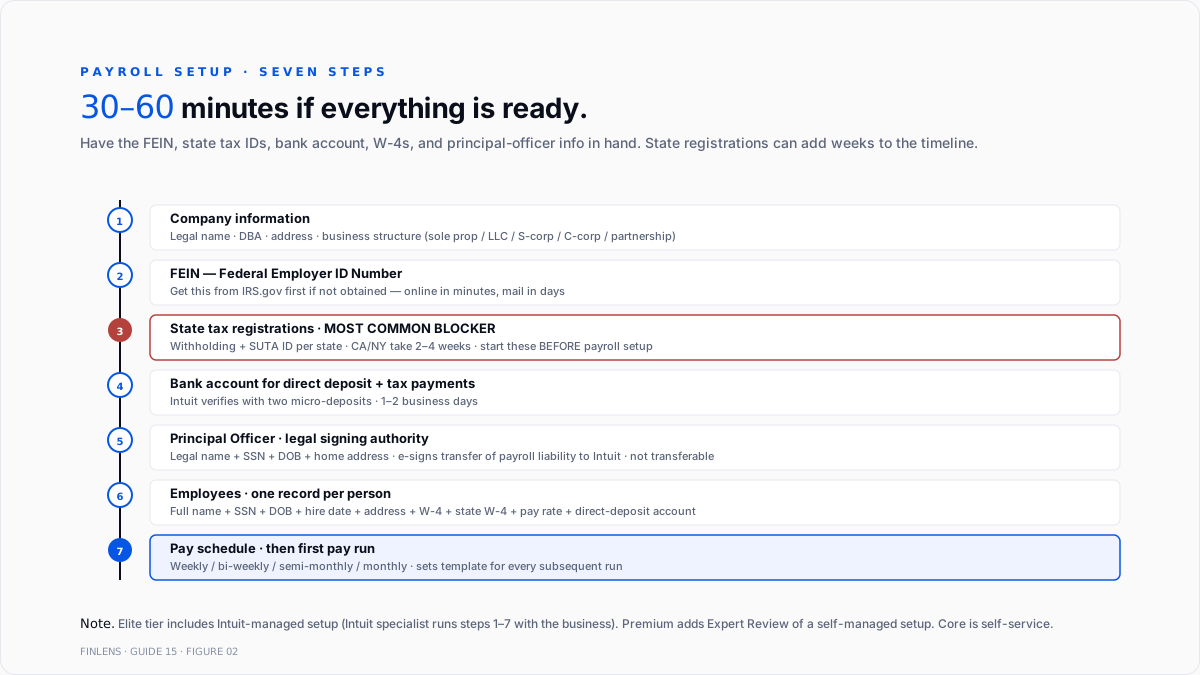
Step 1 - Company information. Legal business name, DBA if any, address, and business structure (sole proprietor / LLC / S-corp / C-corp / partnership). QBO Payroll uses this to file returns.
Step 2 - Federal Employer Identification Number (FEIN). Nine-digit federal ID. If the business doesn't have one, apply through IRS.gov before starting payroll setup - the process takes minutes online but can take days by mail.
Step 3 - State tax registrations. State withholding tax ID + state unemployment (SUTA) tax ID for every state where employees work. This is where most first-time payroll setups stall. Each state requires its own registration with the state Department of Revenue and Department of Labor. Some states process registrations in hours (Texas, Florida); others take 2–4 weeks (California, New York). Start state registration before starting QBO Payroll setup for a smoother go-live.
Step 4 - Bank account. Business checking account for direct deposit disbursement and electronic tax payments. Intuit verifies with two micro-deposits - 1–2 business days.
Step 5 - Principal Officer. A person with legal signing authority (typically the CEO, sole owner, or CFO). Provides legal name, SSN, DOB, and home address. E-signs the payroll authorization, transferring tax-filing authority to Intuit. This step is non-transferable - swapping the principal officer later requires re-authorization.
Step 6 - Employees. For each employee: full legal name, SSN, DOB, hire date, home address, W-4 selections (federal withholding), state W-4 equivalent, pay rate (hourly or salary), pay frequency, and direct deposit bank account (optional but recommended). Bulk-import spreadsheet available for 10+ employees.
Step 7 - Pay schedule. Weekly, biweekly, semi-monthly, or monthly. Set pay period end date and check date. Once set, the first pay run creates a template for subsequent periods.
The elite tier includes Intuit-managed setup - a specialist runs steps 1–7 with the business. The premium tier includes an expert review of a self-managed setup before the first run. The core tier is self-service.
The first pay run - verification checklist
Before hitting "Submit Payroll" on the first run:
- Every employee's W-4 selections reviewed against their signed W-4 form
- Bank account verified (micro-deposits confirmed)
- Federal deposit frequency assigned (monthly or semi-weekly, based on prior-year lookback - new businesses default to monthly)
- Every state tax registration confirmed active with the state
- Direct deposit lead time confirmed against the pay date (Core = 2 business days; Premium/Elite same-day)
- Wage expense mapping in the chart of accounts confirmed (sub-accounts per department if used)
- Principal officer authorization e-signed and dated
- Time entries (if hourly) reviewed and approved
The first pay run should be reviewed by both the business owner (or CFO) and the bookkeeper before submission. Errors at the first run compound into every subsequent run.
The GL journal entry - what QBO Payroll posts
Every pay run auto-generates a journal entry that QBO Payroll writes to the GL. The standard structure:
- Debit: Wage Expense (gross pay)
- Debit: Employer Payroll Tax Expense (ER share of FICA + FUTA + SUTA + local)
- Debit: Employee Benefits Expense (ER share of 401(k) match + HSA + insurance)
- Credit: Payroll Liabilities - Federal Withholding (employee 941)
- Credit: Payroll Liabilities - State Withholding
- Credit: Payroll Liabilities - FICA (both EE + ER shares in this account)
- Credit: Payroll Liabilities - FUTA
- Credit: Payroll Liabilities - SUTA
- Credit: Payroll Liabilities - Benefit Deductions (EE share of 401(k), HSA, FSA, insurance)
- Credit: Cash - Operating Bank Account (net pay to employees)
The Community thread on employer payroll tax expense account setup covers the mapping questions that recur when the default mapping isn't quite right for the business.
When QBO Payroll makes tax deposits and filings, additional entries clear the Payroll Liabilities accounts against the bank. Every liability account should return to zero after each pay period's tax deposits post.
The six failure modes at setup
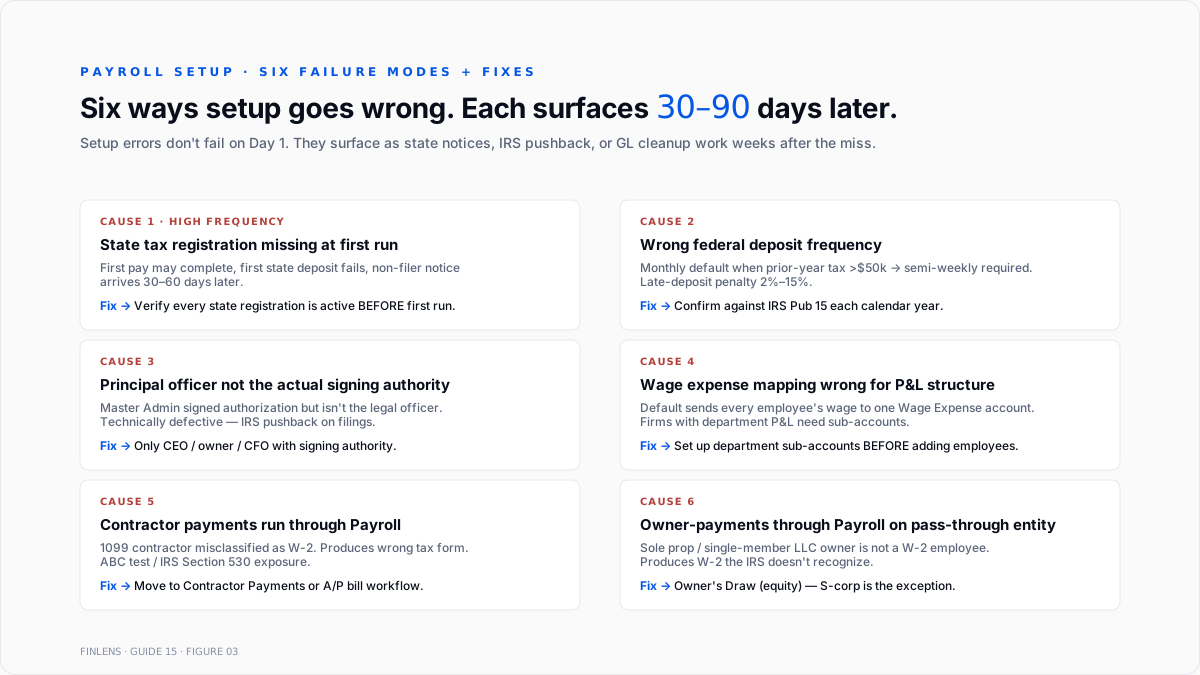
Every setup misstep resolves to one of six recurring causes.
1. State tax registration missing at first pay run
The most common blocker. QBO Payroll asks for the state tax IDs during setup but doesn't verify the registrations are actually active. The first pay run may be complete without them, but the first state tax deposit fails, and the state issues a non-filer notice 30–60 days later.
Fix. Verify every state registration is active before the first pay period. If not registered, complete state registration first - QBO Payroll's tax filings depend on the state accepting the deposits.
2. Wrong federal deposit frequency
New businesses default to monthly deposit frequency. Businesses with prior-year payroll tax liability above $50,000 must switch to semi-weekly. Wrong frequency means late deposits and 2%–15% penalties per late deposit.
Fix. Confirm the frequency against IRS Publication 15 (Circular E) at the start of each calendar year. Update QBO Payroll's tax settings immediately when the frequency changes.
3. Principal officer is not the actual signing authority
Setup allows any master admin to sign the payroll authorization. When the person authorized isn't actually the legal signing authority (spouse of the owner, controller, or external CPA), Intuit's authorization is technically defective and can produce IRS pushback on filings.
Fix. Only the CEO, sole owner, or a CFO with signing authority should complete the principal officer authorization. Update the authorization when leadership changes.
4. Wage expense mapping wrong for the P&L structure
The default mapping sends every employee's wage to a single wage expense account. A firm with department-based P&L (Engineering, Sales, and G&A) needs sub-accounts and per-employee assignment.
Fix. Set up department sub-accounts before adding employees. In each employee record, assign the correct wage expense sub-account.
5. Contractor payments run through Payroll instead of Contractor Payments.
QBO Payroll is for W-2 employees. Paying a 1099 contractor through payroll misclassifies them, produces a W-2 instead of a 1099, and creates ABC test/IRS Section 530 exposure.
Fix. Move contractors to the Contractor Payments feature or a standalone A/P bill workflow. Full 1099 workflow in the accounts payable, vendor bills, and 1099 filing guide.
6. Owner-payments run through Payroll for pass-through entities.
Sole proprietors and single-member LLC owners are not W-2 employees - their pay is Owner's Draw, not payroll. Running an owner through QBO Payroll produces a W-2 for someone the IRS doesn't consider a wage earner and creates a Schedule C or Schedule K-1 reporting mismatch.
Fix. For pass-through entities, owner-payments post to Owner's Draw (equity), not through Payroll. S-corp owners are the exception - they take reasonable comp as W-2 wages plus distributions as equity draws.
Automatic Payroll - the auto-run toggle
QBO Payroll includes an Automatic Payroll setting that runs pay periods without manual approval for eligible employees. Turning it on requires:
- All employees on the pay schedule are salaried (not hourly with variable time)
- No time-entry data changes expected per period
- Direct deposit set up for every employee on the schedule
- Bank account has confirmed sufficient funds
Auto-run is convenient for stable salaried teams. It's a risk for teams with hourly time-tracking, bonuses, PTO variability, or fluctuating headcount. Firms that turn on auto-run should still receive the pre-run confirmation email 2 business days before the pay date and review before the automated submission fires.
Where QBO Payroll stops scaling
Three failure modes compound at higher payroll complexity.
Multi-state payroll beyond 3 states. Each state requires separate registration, separate SUTA rate management, and separate reciprocity handling. QBO Payroll handles multi-state, but the operational overhead compounds. Multi-state payroll is covered separately in the multi-state payroll guide (once published).
Complex benefits stacks. Multiple 401(k) plans, cafeteria plans, HSA + FSA in the same period, dependent care FSA, equity compensation, and imputed income for personal use of company assets. QBO Payroll handles standard benefits well but breaks down on stacked or unusual configurations. Books at this complexity often move to Gusto, Rippling, or a PEO.
Payroll for 50+ employees. QBO Payroll technically supports higher headcount, but per-employee pricing ($6–$10/mo) makes it expensive at scale, and the UI doesn't optimize for bulk operations the way enterprise payroll platforms do. Books at 50+ FTE typically evaluate ADP Workforce Now, Paycom, or Rippling.
At those thresholds, the fix is not more QBO Payroll discipline - it is either upgrading to a dedicated payroll platform or moving to a PEO. Both preserve the QBO GL through a payroll-JE integration covered in the third-party payroll JE guide (once published).
The Finlens approach
Finlens is an AI accounting platform for QBO firms and founder-led businesses. Payroll runs through Intuit's QBO Payroll product; Finlens sits at the GL layer above payroll. For payroll-adjacent workflow, Finlens does the following:
- Payroll JE reconciliation. Every pay period's auto-generated JE posts to the GL. Finlens verifies wage expense, employer tax expense, and benefits expense, all of which map to the correct accounts, and flags mismatches before period-end.
- Payroll liability aging. Every payroll tax liability account (federal withholding, FICA, FUTA, and SUTA) should clear to zero after each deposit. Finlens flags any account carrying a stale balance older than the deposit frequency.
- PTO accrual auto-calculation. For accrual-basis books, PTO liability under ASC 710 accrues each period at the fully loaded hourly rate. Finlens auto-computes the accrual from QBO Payroll's PTO balances and posts the monthly JE.
The features that keep payroll accurate at the GL layer - rather than replacing payroll itself - are the ones surrounding the payroll journal entry:
- Human-in-the-loop review gates every proposed payroll-adjacent adjustment through a CPA before it posts.
- Multi-client payroll dashboard aggregates payroll status across every client on a firm's book without re-authenticating.
- The audit log tracks every payroll-JE edit, adjustment, and reclassification.
For a firm managing payroll across multiple QBO clients, the firm platform handles the cross-client payroll JE reconciliation. For a founder running payroll on a single book, the founder-facing product handles the payroll-JE verification and PTO accrual automation. Book a 20-minute walkthrough: cal.com/finlens/intro.
The verification checklist post-setup
- Every employee record has SSN, DOB, address, W-4 selections, and pay rate confirmed.
- Every state has active tax registrations documented.
- Federal deposit frequency confirmed for the current calendar year.
- Principal officer authorization e-signed with the actual signing authority.
- Wage expense mapping matches the P&L structure (with department sub-accounts if applicable).
- No contractors on the payroll schedule (contractors run through contractor payments or the A/P bill workflow).
- No pass-through-entity owners on payroll (owners take owner's draw for LLC/sole prop, or W-2 reasonable comp for S-corp).
- Bank account verified with micro-deposits.
- The first pay run was reviewed by both the business owner and the bookkeeper before submission.
- Post-run: every payroll liability account balance reconciled to the corresponding tax deposit.
For a firm managing payroll setup and ongoing reconciliation across multiple QBO clients, the firm platform automates the JE verification. For a controller running a single-company book, the founder-facing product handles the same JE audit at company scale.
Conclusion
QBO Payroll works cleanly for the first hire and scales cleanly to the first ten. Beyond that, tier fit and setup discipline determine whether the payroll runs frictionless or produces month-after-month state notices and late-deposit penalties. Core is the right entry tier for straightforward books. Premium is the pragmatic middle for growing teams that need workers' comp, HR support, or same-day direct deposit. Elite is only worth the premium when tax-penalty protection or advanced time tracking is genuinely a requirement.
Setup completeness matters more than tier selection. A Core-tier book with complete state registrations, correct deposit frequency, and correct GL mapping runs cleaner than an Elite-tier book with missing state IDs and wrong wage expense mapping. Do the setup once, verify every step, and payroll becomes a background process.
.png)
FAQ
Does QBO Payroll require QuickBooks Online?
No. QBO Payroll can run standalone (Intuit calls this Intuit Online Payroll for standalone users), but the integration only produces the auto-JE to the GL when both products are on the same account. Standalone users get exports for manual entry.
What is the actual cost per employee at the Core tier?
$45/month base + $6/employee/month, as of 2026. A 5-employee Core book costs $45 + (5 × $6) = $75/month total. Bundled with QBO Simple Start or Essentials, it brings it down with variable discounts.
Is Elite's tax-penalty protection worth $125/month?
Only for businesses with complex tax situations (multi-state, prior late-deposit history, or high-value payroll where a single missed deposit could exceed the difference in cost). For straightforward payroll, Core's automatic filings are already reliable.
How long does the QBO payroll setup take?
30–60 minutes if all information is ready (FEIN, state tax IDs, bank account confirmed, principal officer info, W-4s from every employee). Multi-week if state registrations still need to be obtained.
The difference between Core's next-day and Premium's same-day direct deposit?
Next day: submit payroll on Monday; employees receive it on Tuesday. Same-day: submit before 7 AM PT, employees receive same afternoon. Matters most for businesses with variable pay periods or last-minute payroll adjustments.
Realistic first-pay-run failure modes?
Missing state tax ID (blocks state deposit filing), wrong federal deposit frequency (produces late-deposit penalty), unmapped wage expense (posts to Uncategorized Expense), and unauthorized principal officer (technically defective authorization). Every one of these surfaces 30–90 days after the miss, not on the run day.

