
The QuickBooks Tool Hub guide: which tab fixes which symptom (2026)


This is a working reference for firm bookkeepers and controllers who keep QuickBooks Desktop running. Every technique is sourced to Intuit's own documentation or a real thread on the QuickBooks Community. Numbers cited from user reports are flagged as anecdotal rather than benchmarks.
The problem this guide addresses
The Tool Hub is not a repair tool. It is a launcher for about a dozen repair tools, grouped into tabs, and almost every wasted hour in QuickBooks Desktop troubleshooting comes from running the wrong one.
Failure mode one: the whole ladder, in the wrong order. A QuickBooks Desktop Enterprise 24 user on thread 91685 described a file crashing on close, usually right after a backup, over several weeks.
They had run everything: Windows updates, QuickBooks updates, Tool Hub, Verify and Rebuild Data, Quick Fix my Program, Quick Fix my File, and File Doctor. Several times each.
Every tool reported errors fixed or no problems found. On the server, the tools reported hosting mode off when it was on, and the database service not running when it was. Ten replies, 805 views. Running more tools was not the answer, and running them in a different order would have been.
Failure mode two: the installer that will not install. Users on thread 88577 and thread 77814 could not get the Tool Hub itself onto the machine. The usual cause is Windows User Account Control blocking QuickBooksToolHub.exe, which resolves by right-clicking the installer and choosing Run as administrator.
A repair tool that will not launch is the first thing to fix, and it is not a QuickBooks fault.
The Tool Hub identity
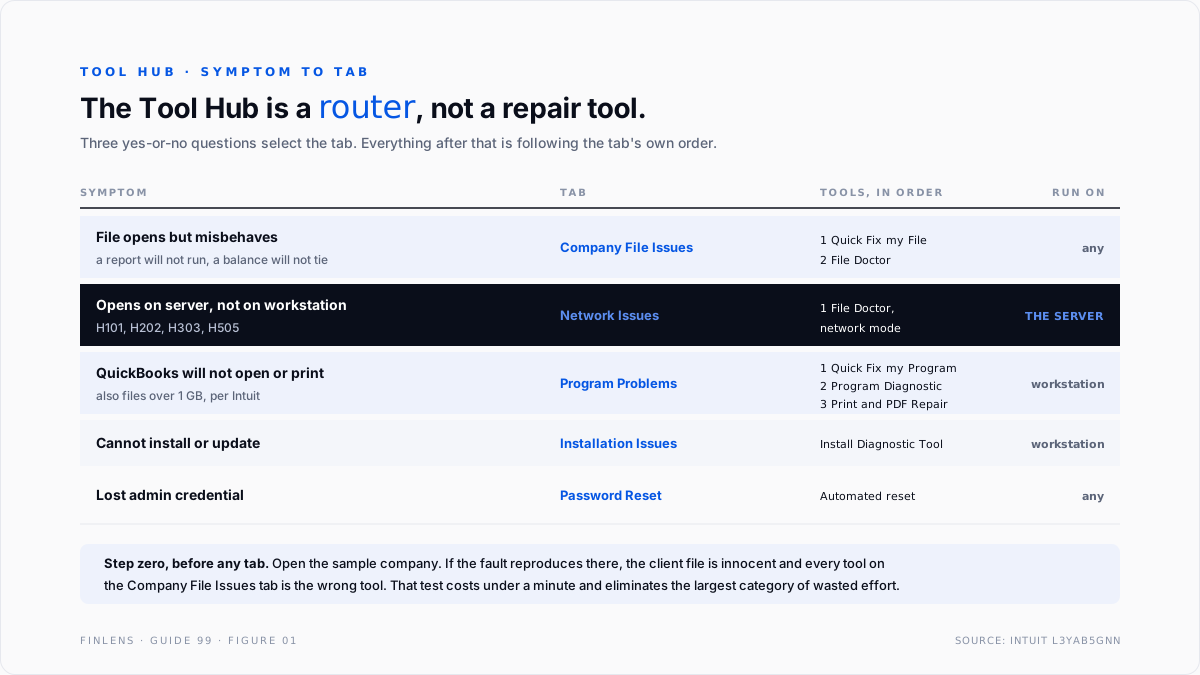
The Tool Hub does one thing: it maps a symptom to a tool. The mapping is the whole product.
SYMPTOM CLASS TAB
File opens but behaves wrong → Company File Issues
File will not open across → Network Issues
the network
Program will not open, crashes → Program Problems
or will not print
Cannot sign in as admin → Password Reset
Cannot install or update → Installation Issues
Two rules follow from that structure, and both are violated constantly.
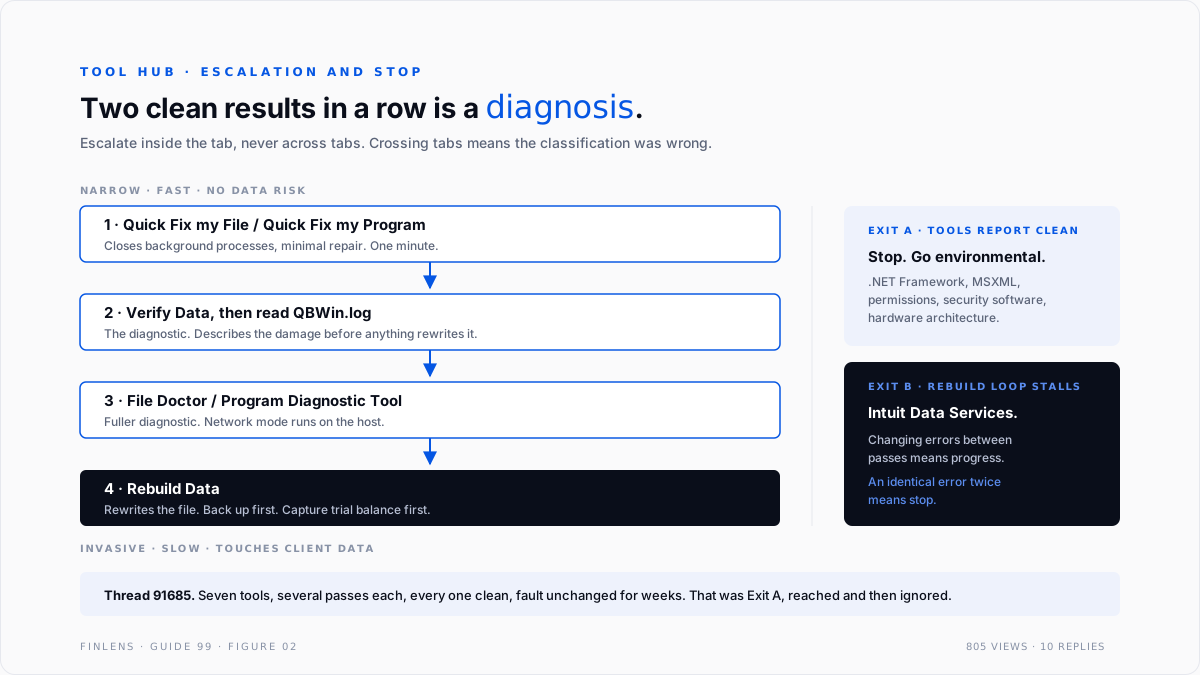
Run the narrowest tool that matches the symptom. Each tab holds tools of increasing invasiveness. Quick Fix my File is a light pass. Rebuild Data rewrites the file. Starting at the heavy end costs time and risk for no diagnostic gain.
A tool reporting success is not evidence the fault is fixed. It is evidence that tool found nothing in its own scope. Thread 91685 is the clean example: seven tools, all clean, fault unchanged. That outcome is information, and it points away from data damage.
Getting the Tool Hub installed
Four steps, and the third is where it usually stops.
Close QuickBooks. The Tool Hub cannot repair a program that is running, and several of its tools will refuse to start.
Download the current version. Intuit's guidance on the Tool Hub directs downloading the most recent build each time rather than reusing an old installer, because the embedded tools are updated independently of QuickBooks itself. At the time of writing Intuit cites version 1.6.0.8.
Run the installer as administrator. Windows User Account Control frequently blocks QuickBooksToolHub.exe with a message about the file being able to harm the device. Right-click the downloaded file and choose Run as administrator. This is the single most common install blocker.
Install it on the machine with the symptom. For a networked file that means the workstation for a program fault and the server for a hosting or network fault. Running the Network Issues tools from the wrong machine produces the misleading hosting-mode readings seen on thread 91685.
The Tool Hub is Windows-only. Firms running QuickBooks Desktop for Mac have a different and much smaller repair surface, and the platform difference is covered in the QuickBooks Online versus Desktop guide.
The six tabs
Company File Issues. Holds Quick Fix my File and launches QuickBooks File Doctor. Use when the file opens but something inside it misbehaves: a report that will not run, a transaction that will not save, a balance that will not reconcile. Quick Fix my File first, File Doctor second.
The File Doctor path is covered in depth in the QuickBooks File Doctor guide.
Network Issues. Holds File Doctor in its network-diagnosis mode. Use when the file opens on the server but not from a workstation, and specifically for error H202 and its relatives. Run these from the server, not from the workstation showing the error, because the tools are testing the host's configuration.
Program Problems. Holds Quick Fix my Program, the QuickBooks Print and PDF Repair Tool, and the QuickBooks Program Diagnostic Tool. Use when QuickBooks itself will not open, freezes, or cannot print. Intuit also directs this tab at preventing data issues on company files larger than 1 GB.
Installation Issues. Holds the QuickBooks Install Diagnostic Tool. Use for failed installs, failed updates, and the 3371 licence family. This is also the tab for the Windows component faults that sit underneath many crashes, since QuickBooks depends on .NET Framework and MSXML being healthy.
Password Reset. Runs the automated admin password reset. Use when the admin credential is lost, not when a user credential is wrong.
Advanced Tools and Help and Support. Shortcuts to Windows-level actions and to Intuit support. The advanced shortcuts are convenience only and do nothing the operating system cannot do directly.
The routing workflow
Five steps. The first two cost two minutes and save most of the rest.
Step one, classify the symptom before opening anything. Does the file open? Does it open on the server but not the workstation? Does QuickBooks itself open? Three yes-or-no answers select the tab.
Step two, establish whether it is one file or all files. Open the QuickBooks sample company. If the sample file shows the same fault, the problem is the program or the environment, not the company file, and the entire Company File Issues tab is the wrong place to be.
Step three, run the narrow tool in the selected tab. Quick Fix my File, or Quick Fix my Program, depending on the answer to step two.
Step four, escalate within the tab, not across tabs. If the narrow tool does not resolve it, move to File Doctor or the Program Diagnostic Tool in the same tab. Jumping to a different tab means the classification in step one was wrong, and it should be redone rather than worked around.
Step five, stop when the tools go quiet. Tools reporting clean twice in a row is a finding, not a prompt to run them a third time. It means the fault is not in the scope those tools cover, and the next move is the Verify and Rebuild path or Intuit data services, not a third run.
What each tool actually does
Knowing what a tool touches is what makes the escalation order defensible rather than superstitious.
Quick Fix my File. A light pass over the company file that closes background processes and runs a minimal repair. It does not rewrite the file. It is fast, low-risk, and worth running first every time because it costs a minute and occasionally ends the investigation.
QuickBooks File Doctor. A diagnostic that examines both the company file and the network path to it. It runs in two modes, file damage and network connectivity, and the mode matters more than most people realise.
Quick Fix my Program. Ends QuickBooks background processes and runs a repair on the installation rather than the data. Use it when the fault follows the program across every file, including the sample company.
QuickBooks Program Diagnostic Tool. Examines the Windows components QuickBooks depends on, principally .NET Framework and MSXML. This is the tool that addresses the environment class of fault, and it is the one skipped most often.
Print and PDF Repair Tool. Rebuilds the printing and PDF driver components. Printing faults look like program faults and are almost never data faults.
Install Diagnostic Tool. Repairs a broken installation or update, including the licence and registration family that produces error 3371.
The asymmetry worth remembering. Every tool on the Company File Issues tab touches client data. Nothing on the Program Problems or Installation Issues tabs does. That is why a fault reproducing in the sample company should never be worked from the Company File Issues tab, and why step two of the routing workflow is not optional.
The failure-mode catalog
Six diagnoses cover most Tool Hub work.
1. Tools run from the wrong machine. Symptom: hosting mode and database service readings that contradict what the server actually shows. Cause: Network Issues tools run from a workstation. Fix: run them on the machine hosting the file.
2. The installer is blocked. Symptom: a warning that QuickBooksToolHub.exe can harm the device, or a download that never completes. Cause: User Account Control, or browser download protection. Fix: right-click and Run as administrator.
3. An old Tool Hub build. Symptom: a tool fails against a current QuickBooks release, or a known fix does not appear. Cause: a reused installer. Fix: download the current build every time, per Intuit's own instruction.
4. Every tool reports clean and the fault persists. Symptom: thread 91685. Cause: the fault is not data damage. Fix: treat the clean results as a diagnosis. Look at the environment: Windows components, permissions, third-party security software, or hardware. Do not run the ladder a fourth time.
5. Rebuild run before Verify. Symptom: a rebuild that reports success against a file whose damage was never characterised. Cause: skipping the diagnostic step. Fix: Verify first so the damage is described, then Rebuild. The unrecoverable error guide covers the loop discipline.
6. Using the Tool Hub on a QuickBooks Online problem. Symptom: nothing happens. Cause: the Tool Hub only touches QuickBooks Desktop. QBO faults are server-side and browser-side. Fix: for a QBO bank feed symptom the destination is the bank feed troubleshooting guide, which owns the feed error codes entirely.
Worked example
A five-user firm reports that one workstation cannot open a client file while the other four can. The file lives on a server.
Classification. The file opens, so it is not a Company File Issues problem. It opens for four users, so it is not a program problem for those four. The fault is network-shaped.
Step two. The affected workstation opens the sample company successfully. The program works. The fault is specific to reaching the hosted file.
Step three. File Doctor is run in network-diagnosis mode from the server, not from the failing workstation. It reports the hosting configuration correctly, because it is running where the hosting lives.
What running it from the workstation would have produced. The contradictory readings on thread 91685: hosting reported off while it is on, the database service reported absent while it is running. Those readings are not bugs. They are what a host-configuration test reports when run from a machine that is not the host.
Time cost of the two paths. The correct route is one classification question and one tool. The incorrect route is the full ladder on the wrong machine, repeated, producing confident wrong readings that then get acted on. That second cost is the real one, because acting on a false hosting reading usually means changing a working configuration.
Where the Tool Hub stops helping
Threshold one: the fault is environmental. Third-party security software holding the file, a damaged .NET Framework, or a permissions structure that blocks the database service are all outside every tool in the hub. The hub will report clean, accurately.
Threshold two: the hardware is unsupported. Intuit documents that error 6123,0 can be caused by running QuickBooks Desktop on an ARM-based machine, since the product is built for Intel and AMD processors. No repair tool addresses a processor architecture.
Threshold three: the fault is intermittent. A tool is a point-in-time test. A file that crashes once a fortnight will verify clean on the thirteen days it does not, and the Tool Hub offers no way to capture state at the moment of failure. Intermittent faults are worked by correlation with events, not by repair passes.
Threshold four: the damage predates the current file. A file carrying damage through several year-end rollovers may verify clean while producing wrong historical numbers. That is a data-integrity question rather than a file-corruption question, and it belongs in the close process rather than in a repair tool. The month-end and year-end close guide covers the checks that surface it.
The Finlens approach
Finlens does not repair QuickBooks Desktop files. It shortens the diagnostic step that precedes the repair, and it reduces how often a repair is needed at all.
1. Ledger-level fault characterisation. When a file misbehaves, the question is whether the numbers are wrong or the software is. Finlens tests the ledger identities directly, so a controller knows before opening the Tool Hub whether the general ledger still balances, whether subledgers agree to control accounts, and whether the fault is cosmetic.
2. Change-history reconstruction. The events that precede file damage are usually visible: a bulk import, a period reopened, a merge. Finlens reports what changed and when, which turns an open-ended repair into a bounded one.
3. Continuous validation rather than periodic repair. The checks that a Verify pass runs against structure, Finlens runs against meaning, on a schedule. A file whose numbers are tested monthly produces fewer surprises at the point where a repair tool becomes necessary.
Four supporting capabilities sit around those three.
- Pre-repair snapshots of trial balance and key subledger totals, so a rebuild can be proven not to have moved anything.
- Post-repair comparison of the same totals, which is the step most firms skip.
- Environment-change correlation, flagging faults that begin at a Windows or QuickBooks update.
- A cross-file view for firms, listing which client files have needed repair and how often.
Verification checklist
Eight lines to run before and after any Tool Hub session.
- QuickBooks is closed, and the Tool Hub build is the current one rather than a reused installer.
- The Tool Hub is installed on the machine the symptom belongs to, server for network faults and workstation for program faults.
- The symptom has been classified into one tab before any tool is run.
- The sample company has been opened to separate a program fault from a file fault.
- The narrow tool in the tab was run before the invasive one.
- Trial balance and key subledger totals were captured before any Rebuild.
- The same totals were compared after, and any movement was investigated rather than accepted.
- If tools reported clean twice, the investigation moved to the environment rather than to a third run.
FAQ
What is the Tool Hub actually for?
It is a launcher that groups about a dozen QuickBooks Desktop repair tools into tabs by symptom class. The value is the routing, not any individual tool.
Why will the installer not run?
Usually Windows User Account Control blocking QuickBooksToolHub.exe. Right-click the downloaded file and choose Run as administrator.
Should the newest version be downloaded every time?
Yes. Intuit's own instruction is to download the current build rather than reuse an installer, because the embedded tools update independently of QuickBooks.
Does the Tool Hub work with QuickBooks Online?
No. It is a QuickBooks Desktop utility for Windows. QuickBooks Online faults are server-side or browser-side and have no local repair surface.
What does it mean when every tool reports clean?
That the fault is outside the scope those tools cover. It is a diagnosis, not a failure. The next step is the environment, not another run.
Which tab handles error H202?
Network Issues, run from the server. H202 is a hosting and connectivity fault rather than a file-damage fault.

