
How Do You Use QuickBooks Without an Accounting Background?


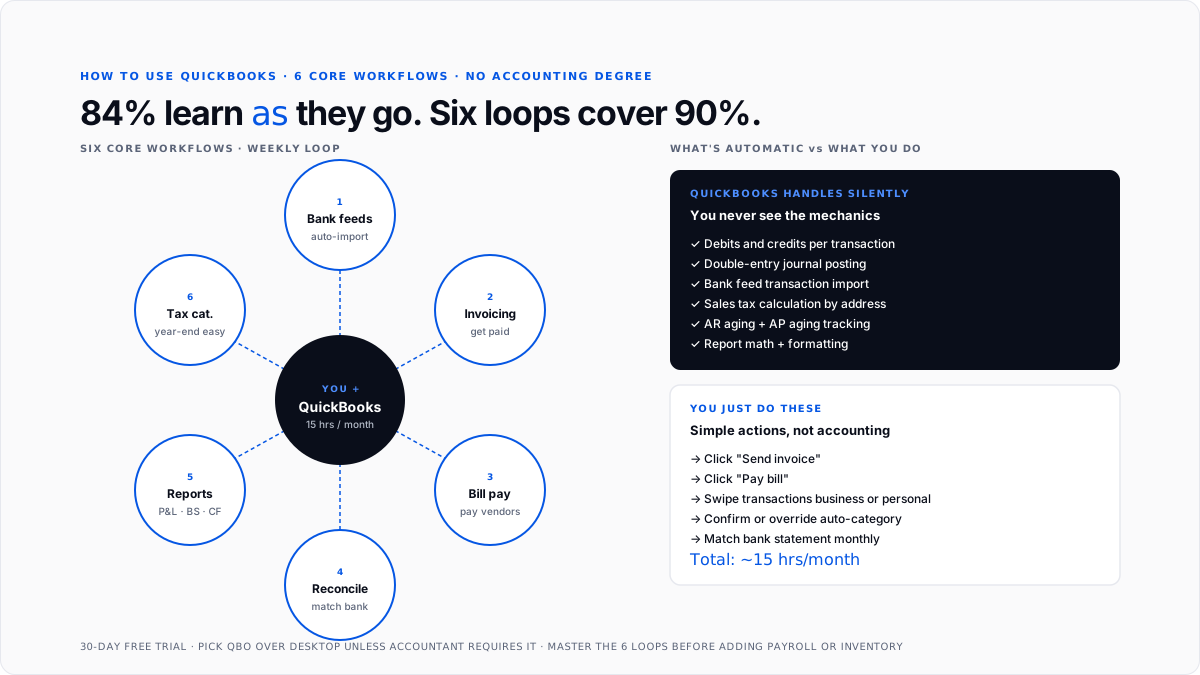
Intuit's own survey found that only 16% of new small-business owners have a business degree. The other 84% pick up QuickBooks with no formal training and figure it out as they go. That's not an accident - QuickBooks was built so a non-accountant can send invoices, categorize transactions, and produce a real profit-and-loss report inside their first weekend of use.
This guide walks through what you actually need to know: which version to pick, how to set it up in an evening, and the six repeating workflows that cover 90% of what a small business needs from bookkeeping software.
Do you need to know accounting to use QuickBooks?
No. QuickBooks handles the double-entry mechanics behind the scenes. When you record an invoice, it debits accounts receivable and credits revenue on your behalf. When you pay a bill, it credits cash and debits the expense account. You never see the journal entry - you just click "Send invoice" or "Pay bill."
What helps is understanding a few concepts in plain English: cash vs accrual (does income count when you invoice, or when you get paid?), the chart of accounts (the list of buckets your money flows into), and the difference between an expense and a liability (a bill you owe vs a loan you borrowed). Our explainers on the chart of accounts and accrual vs cash accounting cover those in an afternoon of reading.
If terms like "debits and credits" scare you, don't worry about them. QuickBooks handles them silently.
Should you start with QuickBooks Online or Desktop?
QuickBooks Online is new to almost everyone. It runs in a browser, syncs from anywhere, gets automatic updates, and is what Intuit actively develops. New sign-ups mostly go here.
QuickBooks Desktop is a locally installed Windows product that Intuit still sells for specific verticals (large legacy manufacturers, some construction firms, non-profits with specialized needs). If your accountant or employer specifically uses Desktop, learn Desktop. Otherwise, QBO.
For a deeper look at the QuickBooks family and who owns it, see who makes QuickBooks and QuickBooks Online accounting.
Which plan should a first-time user pick?
Five tiers. Pick by what your business actually does today, not what you might do in three years.
Solopreneur ($20/mo). Solo freelancer or gig worker filing Schedule C. No employees, no accountant, no partners. Details in What Is QuickBooks Solopreneur.
Simple Start ($35/mo). Single-owner business that needs a real balance sheet, 1099 prep at year-end, sales tax by jurisdiction, and an accountant seat. Details in What Do You Get With QuickBooks Simple Start.
Essentials ($65/mo). Two-to-three-person business with bill pay volume, time tracking, or multi-currency needs. Details in What Do You Get With QuickBooks Essentials.
Plus ($99/mo). Product businesses with inventory, or service businesses with project profitability needs.
Advanced ($235/mo). 10+ users, batch invoicing, approval workflows.
Every tier ships with a 30-day free trial, no credit card required. Try the tier you think fits and upgrade later if you outgrow it. Downgrading loses data, so upgrading in place is the clean path.
What are the six core workflows every user needs?
Ignore the 200 features in the menu. These six cover almost everything a small business needs:
1. Bank feeds. Connect a bank account so QuickBooks pulls transactions automatically.
2. Invoicing. Send customers a bill and accept payment.
3. Bill pay. Record and pay what you owe vendors.
4. Reconciliation. Match QuickBooks against your bank statement each month.
5. Reports. Read profit and loss, balance sheet, and cash flow.
6. Tax categorization. Tag each expense against the right category so year-end is easy.
Everything else (payroll, inventory, projects, class tracking) is a specialization that stacks on top once you've mastered these six.
How do you connect a bank account and let QuickBooks work?
Go to Banking → Bank transactions → Link account. Search for your bank, log in through the bank's authentication screen, and QuickBooks pulls transactions from the last 90 days.
Once connected, every new transaction lands in the "For review" tab. Click one, confirm or override the suggested category, and it flows into your books. After a few weeks of you clicking, QuickBooks learns your patterns and starts guessing correctly most of the time.
Set up bank rules for anything recurring: every Uber charge to "Travel" and every Adobe subscription to "Software Subscriptions." Rules apply retroactively and going forward, so the entire back-catalog cleans itself up as you write them.
Manual entry is the slowest way to work in QuickBooks. Bank feeds eliminate 80% of the typing.
How do you actually send an invoice?
Go to Sales → Invoices → New invoice. Pick the customer (or add a new one on the fly). Add line items with description, quantity, rate, and category. QuickBooks calculates subtotal, sales tax if configured, and total.
Choose delivery: email through QuickBooks with an online payment link, or download PDF and send manually. The customer clicks "Review and pay" in the email and pays by card or ACH through QuickBooks Payments if you've enabled it. Funds land in your bank in 1-3 business days.
The first invoice takes 10 minutes because you're learning the interface. After that, 2-3 minutes each.
How do you enter and pay a bill?
Go to Expenses → Bills → New bill. Pick the vendor. Enter invoice number, bill date, due date, amount, and category. Save the bill.
The bill now sits in accounts payable until you pay it. When ready, go to Expenses → Pay bills, select the bills, pick the payment method (check, ACH, or credit card), and process. At Essentials and above, the full QuickBooks Bill Pay workflow handles approval routing and native ACH or check payments through Intuit's processor.
How do you reconcile a bank account?
Go to Transactions → Reconcile. Pick the account. Enter the statement ending balance and date from your bank statement. QuickBooks shows every transaction it thinks matches. Check off each transaction that appears on your bank statement. When the "difference" hits zero, click Reconcile.
If the difference doesn't zero out, you have a discrepancy. Common causes: a duplicate transaction, a missing transaction, a wrong date, or a wrong amount. Work through them one at a time. For the mechanics of the reconciliation process itself, see bank reconciliation and reconciliation in accounting.
Reconcile monthly, as soon as each bank statement closes. Skipping months means fighting through hundreds of transactions later.
How do you read the three reports that matter?
Go to Reports → Standard reports. Three matter more than the rest.
Profit and Loss. Revenue minus expenses over a date range. Answers: "Did I make money this month?"
Balance Sheet. Assets, liabilities, and equity at a specific date. Answers: "What does my business own vs owe right now?" For the deeper read, see how to read a balance sheet and income statement vs balance sheet.
Cash Flow Statement. How cash actually moved in and out. Different from P&L because it accounts for loans, owner draws, and unpaid invoices. See cash flow vs profit for the difference.
Every report runs in under a minute. Interpretation is the skill. Read your P&L monthly, your balance sheet quarterly, and your cash flow when anything feels tight.
What common mistakes cost first-time users the most?
Categorizing everything as "Ask My Accountant." Creates a giant cleanup task at year-end. Force yourself to pick a real category for every transaction, even if it's imperfect.
Not reconciling monthly. Errors compound. A missed duplicate charge from January becomes a nightmare to find in September.
Skipping the chart-of-accounts customization. The default chart works but is generic. Add categories that match your specific business early.
Manual entry instead of bank feeds. You'll burn evenings typing what the feed would import automatically.
Trying to master every feature at once. Get the six core workflows into muscle memory first. Payroll, inventory, and class tracking can wait.
Ignoring the mobile app. Receipt capture from your phone is the biggest time-saver. Snap receipts as expenses happen instead of piling them up.
Not separating personal and business. Run your business through a dedicated bank account. Mixing accounts creates hours of categorization work every month.
For automation patterns that reduce the routine time-sink once you're comfortable, see how to automate bookkeeping tasks in QuickBooks. For a broader look at whether to DIY or hire help, AI vs DIY accounting covers the trade-offs.
How does Finlens fit alongside QuickBooks?
Finlens is a QuickBooks-compatible AI accounting layer built for CPA firms managing many client books and for small businesses running QuickBooks without an in-house bookkeeper. It sits alongside QBO (Solopreneur through Advanced) and automates the parts most first-time users struggle with: categorizing every transaction correctly, matching receipts to bank charges, catching duplicate entries, and closing the books at month-end.
For an owner without an accounting background, that means the categorization queue that would eat an hour a week gets handled in the background. QuickBooks stays as the source of truth (invoices, bills, chart of accounts, and reports all live there), and Finlens does the repetitive coding work while flagging only real exceptions for you to review.
For a CPA firm running 50+ clients on QuickBooks, Finlens delivers the same categorization and close automation at scale, so the firm can keep books accurate without adding staff. It's the layer that turns QuickBooks into a system that mostly runs itself.
Conclusion
You don't need an accounting background to use QuickBooks. Pick QuickBooks Online, choose the tier that fits your current business (Solopreneur, Simple Start, Essentials, Plus, or Advanced), connect a bank feed, and get comfortable with the six core workflows: bank feeds, invoicing, bill pay, reconciliation, reports, and tax categorization. That covers 90% of what a small business needs. Reconcile monthly, use the mobile app for receipts, and don't try to learn every feature at once. Specialized workflows (payroll, inventory, projects) come after the basics are muscle memory.
FAQs
Do I need to know accounting to use QuickBooks?
No. QuickBooks handles the double-entry mechanics behind the scenes. You never see debits and credits - you just click "Send invoice" or "Pay bill." Understanding a few concepts in plain English helps: cash vs accrual, the chart of accounts, and the difference between expenses and liabilities. Beyond that, learning as you go covers most needs.
Is QuickBooks hard to learn for beginners?
Not for the basics. A beginner can send invoices, categorize transactions, and reconcile a bank account after 8-12 hours of focused practice. Advanced features (inventory, projects, class tracking, and custom reports) take longer. Intuit's own survey found 84% of small-business owners learn QuickBooks without formal accounting training.
Which QuickBooks plan is best for a beginner?
Depends on business type. Solopreneur ($20/mo) for solo Schedule C filers with no accountant. Simple Start ($35/mo) for single-owner businesses needing a balance sheet and 1099 prep. Essentials ($65/mo) for two-to-three-person businesses with billable hours. Plus ($99/mo) for inventory or project profitability. All tiers offer a 30-day free trial with no credit card required.
Should I use QuickBooks Online or QuickBooks Desktop?
QuickBooks Online is new to almost everyone. It runs in a browser, gets automatic updates, and is what Intuit actively develops. Use Desktop only if your accountant or employer specifically requires it.
How long does it take to set up QuickBooks Online?
Basic setup (account creation, one bank connection, first customer and vendor) takes 1-2 hours. A full setup with multiple bank accounts, sales tax configuration, and a real customer/vendor list takes 4-6 hours spread across a week and is more manageable than a single sitting.
How do I connect my bank account to QuickBooks?
Go to Banking → Bank transactions → Link account. Search for your bank, log in through the bank's authentication screen, and QuickBooks pulls transactions from the last 90 days. Most banks connect via Plaid. Wait 5-10 minutes for the first sync to complete.
How often should I reconcile my accounts in QuickBooks?
Monthly, as soon as your bank statement closes. Monthly reconciliation catches errors while they're recent. Skipping months means fighting through hundreds of transactions to find discrepancies.
What reports should a beginner run in QuickBooks?
Three reports cover most needs. Profit and Loss (Did I make money this month?). Balance Sheet (what do I own and owe?). Cash Flow Statement (how did cash actually move?). Run P&L monthly, balance sheet quarterly, and cash flow when anything feels tight.

