
QuickBooks Desktop to Online Migration: The Pre-Flight Checks Nobody Runs


Most QuickBooks Desktop to Online migrations do not fail at the moment of transfer. They fail six weeks later, when someone asks why the balance sheet no longer agrees with last year's printed reports, and nobody on the team can answer.
This guide covers the checks that decide whether a migration is clean or expensive. It covers the target count that gates which QuickBooks Online tier you are allowed to buy, the payroll history that does not move, the inventory costing change that quietly rewrites your gross margin, and the cutover date that makes all three survivable.
The failure nobody budgets for
A nonprofit posted to the QuickBooks Community under the handle asy in a thread titled transition from quickbooks desktop to online - nightmare. The thread drew 8 replies and 818 views.
They migrated in January on a half-price promotional offer. Sales told them everything would transition and that their assisted payroll had an Online equivalent. Payroll did not transition.
Then the real problem surfaced. The new balance sheet showed a large discrepancy against the prior-year reports they had already printed and submitted for a bank loan. They were paying for Desktop, Desktop payroll, and QuickBooks Online simultaneously for two months while support bounced them between the migration team, the Desktop team, and the Online team.
The suggestion that finally came back from migration support was to delete the Online company and run the migration again.
That is the shape of a bad migration. Not a crash. A slow discovery that the file you moved is not the file you had.
What a migration actually is
A migration is not a file copy. It is a translation between two products that model the same accounting differently.
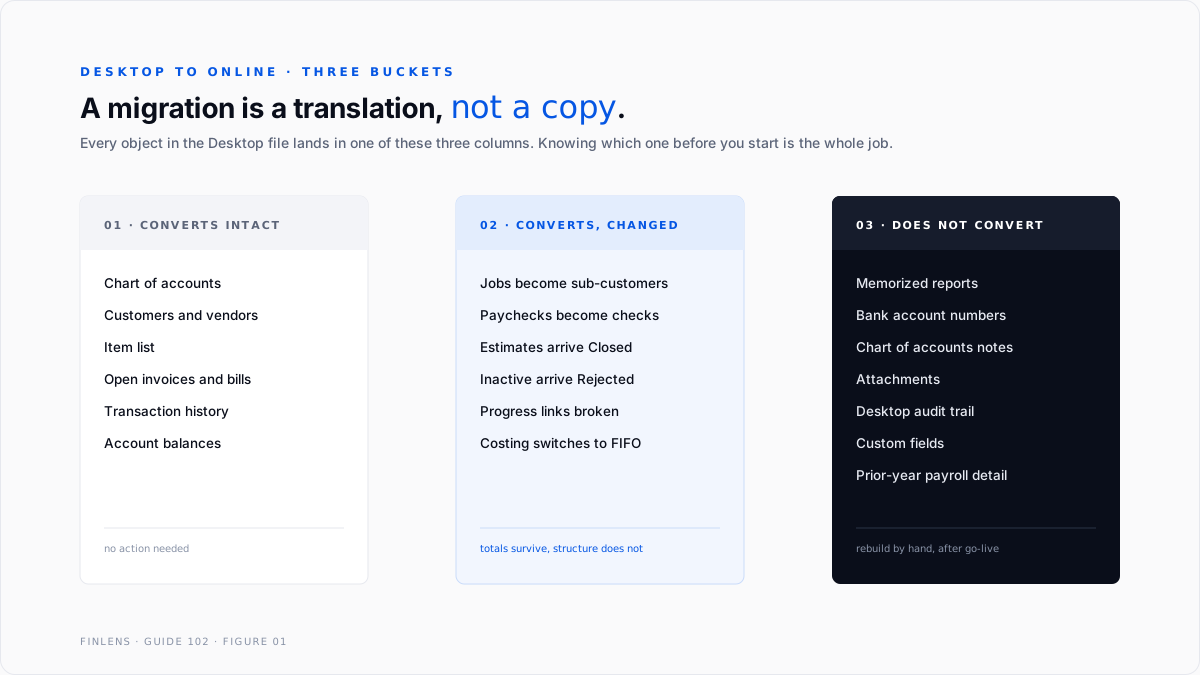
Every object in your Desktop file lands in one of three buckets. Knowing which bucket before you start is the entire job.
Bucket one, converts intact. The chart of accounts, customers, vendors, items, open invoices and bills, and transaction history inside the target limit. Balances carry.
Bucket two, converts as something else. Jobs become sub-customers. Paychecks become regular checks, so the dollar totals survive but the payroll item breakdown does not. Active estimates arrive marked Closed and inactive estimates arrive marked Rejected. Estimates you used for progress invoicing lose the link to the invoices they generated.
Bucket three, does not convert at all. Per Intuit's own article on what data doesn't convert, this includes memorized reports, bank account numbers, notes in the chart of accounts, attachments, the Desktop audit trail, and custom fields on customers, vendors, employees, and items.
Read bucket three again. Memorized reports are usually the reports your board, your lender, or your controller actually looks at. They have to be rebuilt by hand in QuickBooks Online, and the rebuild happens after the migration, when everyone has already declared the project finished.
Pre-flight check one: the target count
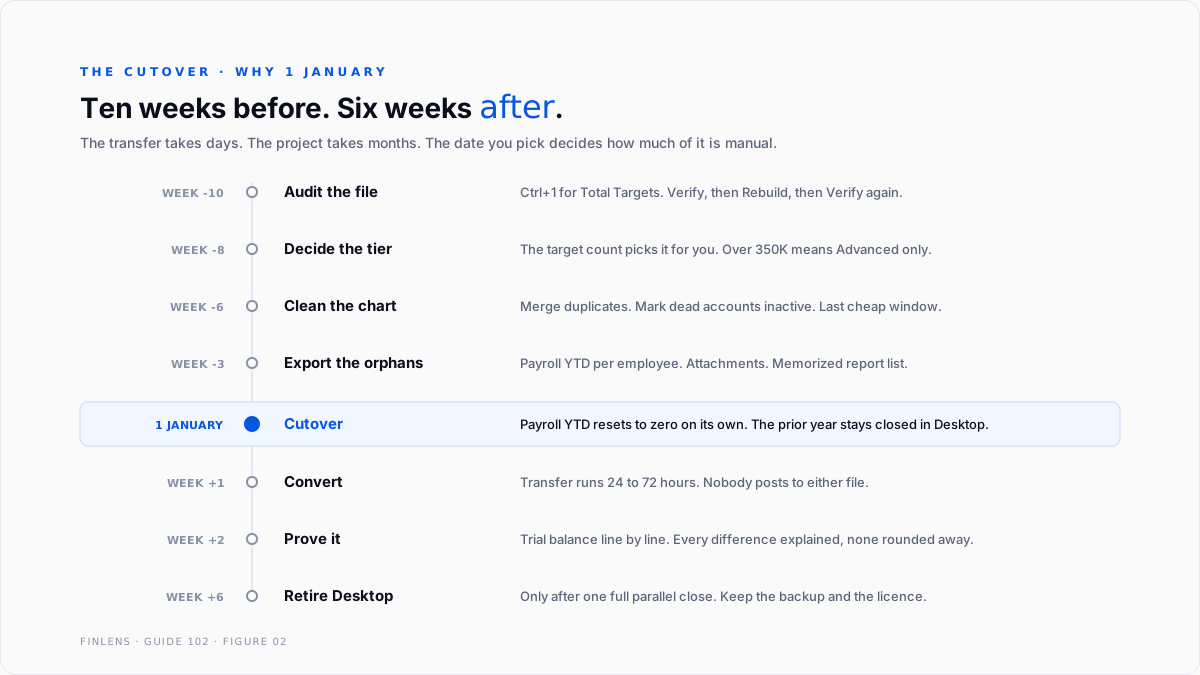
Before anything else, open your Desktop file and press Ctrl+1. The Product Information window shows Total Targets.
A target is a single line of a transaction, not the transaction itself. A ten-line invoice is roughly ten targets. This is why file size in megabytes is a poor proxy and the target count is the real measure.
The number decides your options:
In a Community thread titled QB Desktop to QB Online conversion, a user posting as sjacoby on Accountant Desktop 2021 asked whether 180 database file fragments would break their conversion. The thread ran 2 replies and 47 views.
The Intuit moderator confirmed fragments under 100 have no meaningful performance impact and redirected to the number that matters, the 750,000 target ceiling. A community respondent added the detail Intuit's reply left out: between 350,000 and 750,000, Advanced is your only landing spot.
That is a pricing decision disguised as a technical limit. Your historical transaction volume selects your subscription tier, and it selects it before you have signed anything.
The ceiling also depends on your Desktop edition. Enterprise 2021 and newer, and Pro and Premier 2018 and newer on current releases, reach the 750,000 ceiling. Enterprise 2020 and older, QuickBooks for Mac, and older Pro and Premier builds are capped at 350,000.
Pre-flight check two: file integrity
Run Verify Data, then Rebuild Data if Verify reports anything, then Verify again. Repeat until Verify comes back clean.
This is not optional hygiene. In a thread titled QuickBooks Desktop Enterprise to QuickBooks Online, posted by leonhart1981 and running to 10 replies and 594 views, a respondent named colleenkg2013 reported clients hitting repeated rebuild-data prompts mid-conversion. The Intuit reply was to run Verify and Rebuild to completion before attempting the migration at all.
A corrupted file does not fail cleanly during conversion. It converts partially, and you find out which part later.
Pre-flight check three: payroll
This is where the nonprofit in thread 1408800 lost two months.
Prior-year payroll history does not move. Paychecks convert as regular checks, which means your bank balance and your total payroll expense survive, but the breakdown by payroll item does not, and neither does prior-year employee year-to-date.
What has to be re-entered by hand in QuickBooks Online Payroll:
- Employee addresses and filing details
- Year-to-date wage and tax balances for every employee
- Pay schedules
- Prior-period tax payments, which year-end forms will not reconcile without
If you migrate mid-year, you are hand-keying YTD for every employee and hoping the W-2s balance in December. If you migrate on 1 January, every employee starts at zero and there is nothing to carry.
See W-2 and year-end payroll close in QuickBooks for what the year-end reconciliation actually has to tie to, and the QuickBooks Online Payroll guide for the setup on the receiving side.
Payroll alone is sufficient reason to pick 1 January. Everything else is a bonus.
Choosing the cutover date
There are three defensible cutover dates and one indefensible one.
1 January. The default and the best. Payroll year-to-date resets to zero on its own, so the largest manual re-entry job disappears. The prior year closes in Desktop and stays closed there, which means the reports already in a lender's hands are never touched.
The first day of your fiscal year, if it is not January. Same logic for the books, but payroll still runs on the calendar year, so the payroll YTD problem remains in full.
The first day of a quarter. A workable compromise when the decision cannot wait. Payroll YTD must be entered for every employee, but there is a clean quarterly filing boundary to reconcile against, which gives you a checkpoint before year-end rather than a surprise.
Any random date mid-period. This is the indefensible one. It splits a period across two systems, so no single report covers it, and every reconciliation for that period has to be assembled by hand from both.
The chart of accounts window
Migration is the last cheap moment to fix the chart of accounts.
In a live file, renaming or merging an account rewrites how history reports. In a migration, you are rebuilding the mapping anyway, so structural changes cost nothing extra.
Three things to settle before the transfer. First, merge the duplicate accounts that accumulated from bank feed categorisation, since every duplicate becomes a permanent QuickBooks Online account otherwise.
Second, decide whether departments and locations will be tracked as classes, locations, or sub-accounts, because QuickBooks Online handles these differently from Desktop. Third, mark genuinely dead accounts inactive in Desktop first, so they do not arrive as clutter.
Bank account numbers and chart of accounts notes do not convert. If either carries information your team relies on, export it before the transfer and store it somewhere you will still find in a year.
The costing change that rewrites your margin
QuickBooks Desktop Pro and Premier cost inventory on average cost. QuickBooks Online Plus and Advanced cost inventory on FIFO. The conversion does not reconcile the two. It simply changes which method applies going forward.
The divergence starts small and compounds. Here is the arithmetic on a single item.
Widget A, purchase history
700 units sold, 500 on hand.
Average cost, the Desktop method. $12,750.00 divided by 1,200 units is $10.625 per unit. Cost of goods sold is 700 x $10.625 = $7,437.50. Inventory on hand is 500 x $10.625 = $5,312.50.
FIFO, the Online method. The 700 units sold come from Lot 1 in full and 300 units of Lot 2. Cost of goods sold is $3,200.00 + (300 x $11.00) = $6,500.00. Inventory on hand is the untouched Lot 3, 500 x $12.50 = $6,250.00.
The gap. Inventory is $937.50 higher under FIFO. Cost of goods sold is $937.50 lower. On one item, in one period, with rising costs.
Check the proof both ways. Total cost available is $12,750.00 under either method. Average cost splits it $7,437.50 to cost of sales and $5,312.50 to the balance sheet. FIFO splits it $6,500.00 and $6,250.00. Both sum to $12,750.00. The methods do not disagree about total cost, only about timing.
Now multiply by your item count. This is a large part of why a post-migration balance sheet stops agreeing with the one the bank already has.
There is a tax consequence too. Changing your inventory costing method is a change in method of accounting under section 446, and it generally requires Form 3115 rather than a simple switch. If inventory is material to your return, this is a conversation with your tax preparer before you migrate, not after.
Six ways migrations go wrong
One, migrating mid-year. Every payroll YTD figure becomes a manual entry, and every one of them is a W-2 defect waiting for December.
Two, cancelling Desktop too early. You need the Desktop file to answer questions for years. Keep the licence active or at minimum keep a restorable backup, and keep the ability to open it. IRS Publication 583 sets the expectation that supporting records stay available for as long as they are relevant to a return.
Three, no parallel run. Running both systems for one full close is the only way to find the differences while someone still remembers the old system.
Four, assuming the chart of accounts is fine. Migration is the one free moment to fix a chart of accounts that grew by accident. After go-live, every change rewrites history. See the QuickBooks month-end and year-end close guide for what a clean structure has to support.
Five, losing purchase order workflow. QuickBooks Desktop has item receipts as a distinct step between the purchase order and the bill. QuickBooks Online does not. If your controls depend on three-way matching, read purchase orders, receiving, and three-way match in QuickBooks before you commit, because the control has to be rebuilt differently.
Six, migrating a multi-currency file without checking the setting. Multi-currency in QuickBooks Online cannot be switched off once enabled. Confirm the behaviour you need first using multi-currency setup and transactions in QuickBooks.
Thresholds: when to migrate differently
Under 350,000 targets, clean file, no inventory, no payroll. Standard migration. A weekend of work.
Payroll running. Migrate effective 1 January. No exceptions worth taking.
Inventory material to the financials. Add the costing method change to the project plan and raise Form 3115 with your preparer before the cutover.
350,000 to 750,000 targets. Price Advanced into the decision, because it is the only tier available. The QuickBooks Online Advanced tier deep dive covers what you are buying.
Over 750,000 targets, or Enterprise with advanced inventory. A full conversion may not be the right answer. The QuickBooks Enterprise complete guide and QuickBooks Online vs QuickBooks Desktop both matter here, because staying is a legitimate outcome.
Heavy reliance on memorized reports. Budget rebuild time explicitly. Count the reports before you start.
How Finlens approaches this
The expensive part of a migration is not moving the data. It is proving afterwards that the numbers still mean what they used to mean.
Finlens runs the comparison that proves it. Trial balance from the Desktop file at cutover against trial balance from QuickBooks Online after conversion, line by line, with every difference explained and attributed rather than written off to rounding. Inventory valuation differences are isolated and sized separately, because those are the ones a lender will ask about.
After go-live, the same reconciliation runs every month against the bank, so the first post-migration close is a verified close and not a hopeful one. Bank reconciliation in QuickBooks is the baseline that discipline builds on.
Verification checklist
FAQ
How long does a QuickBooks Desktop to Online migration take?
The data transfer itself usually completes within 24 to 72 hours depending on file size. The project is longer. Payroll re-entry, report rebuilding, and the parallel close typically run four to six weeks beyond the transfer.
Can I migrate back to Desktop if it does not work out?
Partially. The reverse path has its own limitations, documented by Intuit under article L2KWX4vj6_US_en_US. It is not a symmetrical round trip, so do not plan on it as a safety net. Your Desktop backup is the safety net.
Will my historical reports look the same in QuickBooks Online?
No. Memorized reports do not convert and have to be rebuilt. Standard reports exist in both products but are structured differently, and inventory-dependent reports will differ because of the costing method change.
What happens to my jobs?
They convert to sub-customers. The hierarchy survives, the terminology changes, and job-costing reports built around the Desktop structure will need rework.
Does the migration cost anything?
Intuit's standard migration path does not carry a separate fee, and the internal migration tool is documented under article L47H2Uugp_CA_en_CA. The cost is the overlap period where you are paying for both products, plus the labour. Plan for at least one month of double subscription.
Why do my estimates say Closed?
Active estimates convert with a Closed status and inactive ones convert as Rejected. The status has to be corrected manually after conversion. Estimates used for progress invoicing also lose their link to the invoices they generated in Desktop.
Should I clean up the file before migrating or after?
Before. Every cleanup task is cheaper in Desktop, where you still have the audit trail, the memorized reports, and the muscle memory. After the cutover, cleanup means editing converted history.

